An external SSD for gaming can make game storage faster, easier to manage, and far more flexible. Modern games can consume well over 100GB, so even a large internal drive can fill quickly. An external solid-state drive gives you a convenient way to expand your storage without rebuilding your entire gaming PC or replacing the main drive in your console.
Unlike traditional external hard drives, SSDs use flash memory, which provides faster data access, quieter operation, and better resistance to movement. Whether you play on a gaming PC, PlayStation, Xbox, or laptop, choosing the right external SSD depends on more than advertised speed. Interface compatibility, sustained performance, capacity, portability, durability, and price all matter. This guide explains what to look for in an external SSD for gaming and how to choose a drive that fits your setup.
What Is an External SSD for Gaming.
An external SSD for gaming is a portable solid-state storage device that connects to a gaming PC, laptop, or compatible console through a cable. It stores games, applications, screenshots, recordings, and other files outside your computer’s or console’s internal storage.
The biggest difference between an SSD and a traditional external hard disk drive is how each device stores and accesses data. An SSD uses NAND flash memory and has no spinning platters or mechanical read/write heads. This allows it to access files quickly and operate quietly.
For gamers, that translates into practical benefits. An external SSD can reduce the time needed to copy large game files, install titles, move games between drives, and load certain games when the platform supports running them directly from external storage.
However, an external SSD does not automatically make every game run at a higher frame rate. FPS depends primarily on components such as the CPU and GPU. Storage affects loading, file transfers, and some streaming-related behavior rather than directly increasing graphics performance.
Modern external SSDs are available with USB 3.2, USB4, and Thunderbolt connections. The actual performance depends on both the SSD and the port used by your gaming device.
For gamers with limited internal storage, an external SSD provides a simple expansion path without opening the system or replacing an existing internal drive.
Why Use an External SSD for Gaming.
The main reason to use an external SSD for gaming is fast, convenient storage expansion. Modern game libraries can become enormous, especially when large updates, downloadable content, high-resolution textures, and multiple multiplayer titles are involved.
An external SSD can help you keep more games available without constantly deleting and reinstalling them. This is particularly useful for gamers who switch between several titles.
Another advantage is portability. You can disconnect the SSD from one compatible computer and connect it to another system when appropriate. This makes an external drive useful for gamers who travel, attend LAN events, or use multiple PCs.
External SSDs also provide faster file transfers than many older mechanical drives. Moving a 100GB game installation can take significantly less time with a high-speed SSD and compatible interface.
Quiet operation is another benefit. Because SSDs have no moving mechanical parts, they generally operate silently. This can be useful for gaming setups where you want to reduce unnecessary noise.
Durability can also improve portability. An SSD is generally less vulnerable to physical shocks than a mechanical hard drive because it does not contain spinning platters.
Still, the value depends on your setup. If your PC already has a large, fast internal NVMe SSD with plenty of unused capacity, an external SSD may be unnecessary.
For most storage-constrained gamers, however, it provides a practical balance between speed, convenience, and capacity.
How Fast Should an External SSD Be for Gaming.
The right speed depends on your gaming platform and the connection available on your system. A drive advertised at 2,000MB/s cannot deliver that speed if it is connected to a slower USB port.
Many mainstream external SSDs use USB 3.2 interfaces. Depending on the generation and implementation, these can provide considerably different theoretical bandwidth levels.
For ordinary game storage, you do not necessarily need the fastest external SSD available. A good-quality drive with reliable sequential performance can already feel dramatically faster than a traditional external hard drive.
High-end USB4 and Thunderbolt SSDs can offer much higher transfer rates, making them attractive for gamers who frequently move huge game libraries or other large files.
However, sustained performance matters as much as peak benchmark numbers. Some SSDs reach impressive speeds for short transfers but slow down during long writes because of thermal limits or cache behavior.
Gaming workloads also involve more than sequential transfers. Games frequently read many files of different sizes, so random performance and latency matter too.
The best approach is to match the SSD with your device. Check whether your PC, laptop, or console supports the interface before paying extra for a faster drive.
In simple terms, a balanced external SSD is usually better than an extremely fast SSD connected to a slow port.
For gaming, prioritize compatibility, reliability, sustained performance, and enough storage capacity before chasing the highest advertised number.
External SSD vs External HDD for Gaming.
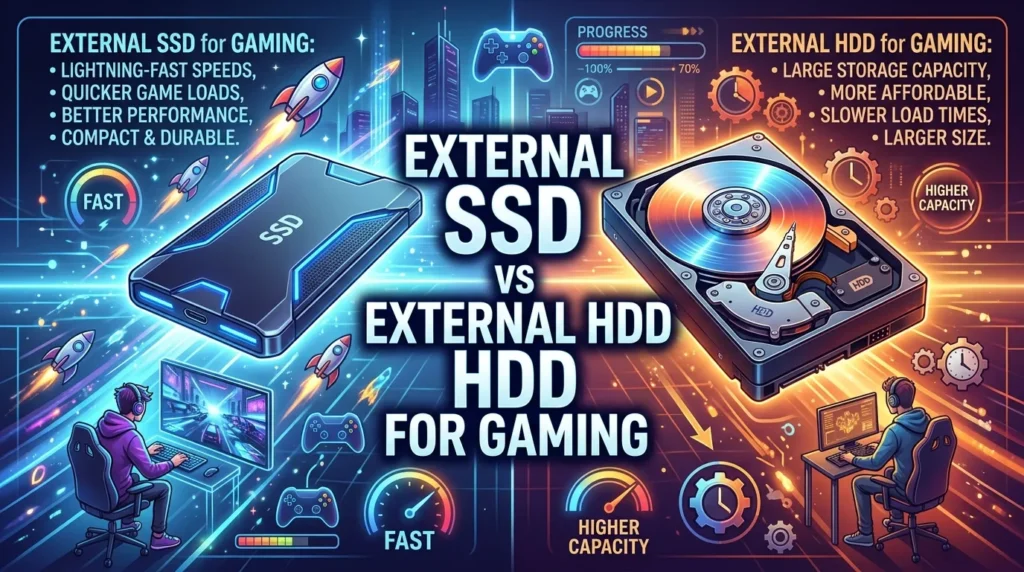
External SSDs and external HDDs can both store games, but their performance and physical characteristics differ considerably.
An external HDD uses spinning magnetic platters and mechanical components. It typically costs less per terabyte, making it attractive for users who need several terabytes of inexpensive storage.
An external SSD uses flash memory. It has no spinning platters and can access data much more quickly. This makes SSDs particularly useful for installing, transferring, and loading games.
HDDs remain useful for archival storage. You could store older games, videos, backups, and large files on an inexpensive high-capacity HDD while keeping frequently played games on an SSD.
For active gaming, an SSD generally offers the better experience. Games can load faster, updates can transfer more quickly, and the drive feels more responsive when navigating large collections.
Portability is another advantage for SSDs. Their compact design makes them easier to carry, and their lack of moving parts makes them better suited to frequent transportation.
Price remains the main advantage of HDDs. If your only goal is storing a huge library and you rarely play the games stored there, an HDD can provide much more capacity for your budget.
The best choice depends on priorities. Choose an external SSD for gaming when speed, responsiveness, and portability matter most. Choose an HDD when maximum capacity at the lowest cost is the priority.
A hybrid setup can also work extremely well: fast SSD storage for current games and inexpensive HDD storage for archives.
Best External SSD Capacity for Gaming.
Capacity should match the size of your game library and your budget. For many gamers, 1TB is a practical starting point, while 2TB offers more flexibility for larger libraries.
A 500GB external SSD can work for light gaming, but usable space disappears quickly. The operating system, game files, patches, and downloadable content can consume storage faster than expected.
A 1TB drive provides room for multiple large games while remaining relatively affordable. It can be particularly useful for laptops or systems with limited internal storage.
A 2TB external SSD is a stronger option for serious gamers. Modern AAA titles can occupy substantial amounts of space, and keeping several games installed reduces the need to repeatedly download them.
Gamers with very large libraries may prefer 4TB or larger drives. These models cost more, but the extra capacity can be worthwhile if you frequently rotate between many titles.
Remember that advertised capacity is not identical to the amount of usable space shown by the operating system. Formatting and file-system overhead reduce available capacity slightly.
You should also avoid filling an SSD completely. Leaving some free space can help maintain performance and gives the drive room to manage data efficiently.
Instead of choosing capacity solely by today’s library, consider your expected needs over the next few years.
For most users, 1TB offers good value, 2TB provides a comfortable gaming library, and 4TB suits heavy storage users.
USB 3.2, USB4, and Thunderbolt for Gaming SSDs.
The connection between your external SSD and gaming device strongly affects performance. USB 3.2, USB4, and Thunderbolt are common interfaces in modern high-performance external storage.
USB 3.2 covers multiple performance levels, so you should check the exact specification of your computer’s port. A USB-C connector alone does not tell you the maximum transfer speed.
USB4 can offer significantly higher bandwidth than older USB standards when both the computer and SSD support the required mode.
Thunderbolt connections can also deliver excellent external storage performance, especially on compatible PCs and laptops. However, paying for a premium Thunderbolt SSD makes little sense if your gaming system cannot use its full capabilities.
Compatibility is therefore more important than the connector’s shape.
USB-C describes the physical connector, while USB 3.2, USB4, and Thunderbolt describe different capabilities and standards. Two devices may both use USB-C but perform very differently.
Always check the specifications for the actual port, cable, enclosure, and SSD.
The cable matters too. A cable that does not support the required bandwidth can limit the drive.
For console users, platform-specific compatibility should take priority. A technically powerful SSD may still have limitations depending on how the console handles external storage.
For PC gaming, selecting an SSD that matches your motherboard or laptop’s available ports usually gives the best balance between performance and cost.
The key lesson is simple: your external SSD is only as fast as the weakest major link in the connection chain.
Can You Play Games Directly From an External SSD.
Whether you can play games directly from an external SSD depends on the platform and the specific game.
On many gaming PCs, you can install and run games from an external SSD. Platforms such as Steam allow users to create and manage game libraries on different storage devices. Performance depends on the SSD, connection, game engine, and system configuration.
PC gamers should use a fast, reliable SSD and connect it directly to the computer rather than through a low-performance hub.
Console compatibility is more complicated. Some consoles allow older-generation games to run directly from USB external storage, while newer titles may require internal or approved expansion storage because of their performance requirements.
For example, modern console architectures can use specialized internal storage systems designed around high-speed game data streaming. An ordinary USB SSD may serve as excellent storage for compatible titles without being allowed to run every game directly.
This distinction is important before purchasing an external SSD specifically for a console.
On PC, an external SSD can function much like another game drive. You can install games, move them between libraries, and keep your internal storage available for the operating system and frequently used applications.
For console owners, always check the official storage requirements for the exact console generation and game.
Therefore, an external SSD can absolutely become an active gaming drive, but play-from-external support is platform-specific.
Storage expansion and direct game execution are two different capabilities, so verify both before buying.
External SSD for PC Gaming.
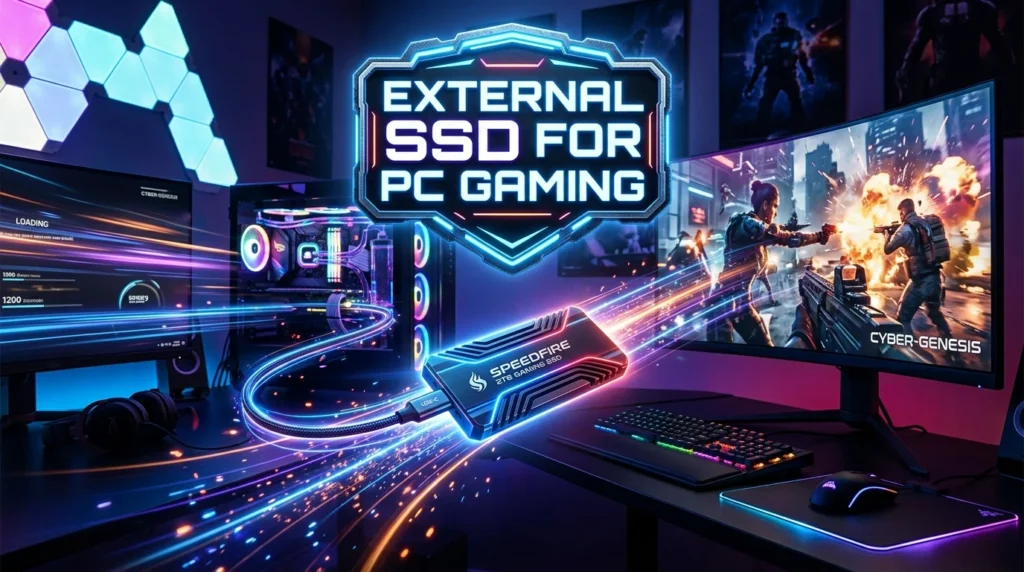
An external SSD can be particularly useful for PC gamers who have limited internal storage or use multiple computers.
Installing games on an external SSD is generally straightforward. On platforms that support custom library locations, you can create a dedicated game folder on the external drive and select it during installation.
The biggest advantage is flexibility. Instead of replacing your internal drive, you can simply connect another storage device.
A high-speed external SSD can also make transferring games between PCs easier. Rather than downloading a large game again, you may be able to move or copy the installation files, depending on the game launcher.
Laptop gamers can benefit even more because many laptops have limited upgrade options. An external SSD adds capacity without requiring internal hardware modifications.
Connection stability matters. Use a direct connection whenever possible, especially for gaming. Avoid cheap hubs and questionable cables when maximum performance and reliability matter.
You should also consider the drive’s temperature. Compact external SSDs can become warm during long transfers, and sustained workloads may reduce performance if thermal limits are reached.
A good external SSD enclosure should provide adequate heat management without becoming excessively bulky.
For PC gamers, the ideal drive combines a fast interface, reliable NAND storage, good thermal behavior, sufficient capacity, and a strong warranty.
If you regularly carry the drive between systems, durability and cable quality become equally important.
Overall, an external SSD can be an excellent secondary gaming drive for desktops, laptops, and compact gaming PCs.
External SSD for PlayStation Gaming.
PlayStation compatibility depends heavily on the console generation. Gamers should distinguish between using external storage for storing games and using it for playing games directly.
On compatible PlayStation systems, external USB storage can provide substantial additional capacity. However, certain newer-generation games may need to be moved to internal or approved high-speed storage before they can be played.
This is related to how modern console games use high-speed storage to stream assets during gameplay. The internal storage architecture can provide performance that a conventional external USB drive may not match.
For older compatible titles, an external SSD can still provide a significant improvement over a mechanical external hard drive in storage responsiveness.
Before purchasing, verify the console’s supported USB specification, storage capacity requirements, formatting requirements, and rules for playing versus storing games.
The SSD should also have enough capacity for your library. A 1TB drive can be useful for moderate collections, while 2TB or 4TB options make more sense for users who regularly keep many games installed.
Installation is generally simple, but console formatting may erase existing data on the drive. Always back up important files before formatting.
An external SSD is therefore a useful PlayStation storage accessory, but the exact benefits depend on your console generation and game library.
The safest approach is to check Sony’s current compatibility requirements before buying.
External SSD for Xbox Gaming.
Xbox gamers can also benefit from external SSD storage, but compatibility depends on the console generation and the type of games being stored.
Many Xbox systems support external USB storage for expanding game libraries. However, not every game can necessarily run directly from an ordinary USB SSD.
Some newer titles designed for current-generation Xbox hardware require the console’s internal SSD or a compatible expansion card for direct gameplay.
An external SSD can still be extremely useful for storing games that are not currently being played. You can move a large game from external storage to internal storage rather than downloading it again.
This approach can save time when internet speeds are limited or data caps are a concern.
An external SSD also provides faster transfers than many traditional HDDs, making game movement more convenient.
When choosing an SSD for Xbox, check the console’s current requirements rather than assuming that every USB-C or USB 3.x SSD will provide identical functionality.
Capacity is another consideration. A 2TB external SSD can store a substantial collection, while 4TB models offer even more flexibility.
Remember that storage compatibility and game execution compatibility are separate questions.
For Xbox users, the best external SSD is one that fits the console’s supported specifications and matches your actual use case. If you mainly need an archive for games you rotate, a large external SSD can be extremely convenient even when some titles require internal or expansion storage for gameplay.
How Much Does an External Gaming SSD Cost.
The cost of an external SSD depends on capacity, interface, performance, brand, enclosure design, and warranty.
Entry-level 500GB and 1TB models can be relatively affordable, making them suitable for gamers who want a basic storage upgrade.
Mid-range 1TB and 2TB drives often provide the strongest balance between capacity and price. They offer enough room for several modern games without requiring the premium associated with cutting-edge interfaces.
High-end 2TB and 4TB external SSDs can cost significantly more. These models may offer faster interfaces, better sustained performance, stronger enclosures, or additional features.
Prices also change frequently because SSD technology is highly competitive. NAND flash costs, product generations, promotions, and new models can all affect retail pricing.
Rather than choosing based solely on the lowest price, consider the cost per usable terabyte and the drive’s overall specifications.
A cheap SSD with poor sustained performance or limited warranty coverage may not represent better value than a slightly more expensive model from an established manufacturer.
For gaming, you generally do not need to buy the most expensive external SSD available. A reliable 1TB or 2TB model with a suitable USB interface can provide excellent everyday performance.
If you frequently transfer huge files, upgrading to a faster interface may be worthwhile.
The best buying strategy is to set a capacity target first, determine your system’s maximum supported interface, and then compare reputable drives within that range.
Features to Look for in an External SSD for Gaming.
Choosing an external SSD becomes easier when you know which specifications actually matter.
Capacity should come first because running out of space defeats the purpose of a storage upgrade. For most gamers, 1TB or 2TB is a practical range.
Interface speed comes next. Match the drive to your PC, laptop, or console so you do not pay for performance your system cannot use.
Sustained performance matters when moving large game installations. Look beyond the headline sequential-read number.
Thermal management is important for compact drives. Heavy transfers can generate heat, and excessive temperatures may reduce performance.
Durability matters if you carry the SSD in a backpack. Shock resistance and a strong enclosure can reduce the risk of physical damage.
Warranty coverage provides additional confidence. Check the manufacturer’s warranty period and conditions before buying.
Cable quality should not be overlooked. The right cable helps ensure the drive can operate at its intended interface speed.
Software support can also be useful. Some manufacturers provide firmware updates, health monitoring, encryption tools, or cloning utilities.
Finally, consider physical size. A tiny SSD is convenient for laptops and travel, while a larger enclosure may provide better cooling.
You do not need every premium feature. The ideal external SSD combines the characteristics that match your gaming habits.
For most users, the winning combination is reliable storage, enough capacity, appropriate interface speed, good thermal behavior, and strong warranty support.
How to Set Up an External SSD for Gaming.
Setting up an external SSD for gaming is usually straightforward, but preparing it correctly can prevent problems later.
First, connect the SSD directly to a compatible high-speed port. Avoid using an unknown hub during initial setup because it can complicate troubleshooting.
Next, allow your operating system or console to detect the drive. A PC may require you to initialize, partition, and format a new SSD before it becomes available for game storage.
Choose the appropriate file system for your platform. Windows users commonly use NTFS for PC gaming, while consoles may require their own formatting process.
If the drive contains important files, back them up before formatting. Formatting normally erases existing data.
After setup, create a dedicated game library if your gaming platform supports custom installation locations.
On PC, you can then move existing games to the external drive or install future titles there.
Keep the SSD connected securely during game updates and file transfers. Disconnecting a drive while data is being written can cause corruption.
It is also wise to eject the drive safely when your operating system provides that option.
For consoles, follow the platform’s own storage-management instructions because formatting and game-transfer procedures differ.
Finally, test the drive with a small file transfer before moving your entire game library.
A clean setup can provide years of convenient storage.
The process is simple, but correct formatting, safe removal, and compatible connections are essential for reliable gaming storage.
How to Keep an External Gaming SSD Healthy.
Good maintenance can help an external SSD remain reliable for years.
The first rule is to avoid unnecessary physical abuse. Although SSDs are more resistant to shocks than mechanical hard drives, the enclosure, connector, and cable can still be damaged.
Keep the drive away from excessive heat and moisture. Compact external SSDs can become warm during extended transfers, so avoid covering the drive with clothing or other materials that restrict airflow.
Do not constantly fill the SSD to its maximum capacity. Leaving reasonable free space can help maintain performance and makes managing large game installations easier.
Keep firmware updated when the manufacturer provides a legitimate update utility.
Use the operating system’s safe-eject function before disconnecting the drive. This is especially important if game files or other data are actively being written.
Avoid questionable cables. A damaged cable can cause disconnects, transfer failures, or reduced performance.
Regularly check the drive’s health if the manufacturer provides monitoring software. Early warnings can give you time to back up important files.
An external SSD should never be your only copy of irreplaceable data. Game installations can usually be downloaded again, but personal recordings, saves, screenshots, and other files may be much harder to replace.
For valuable files, maintain a separate backup.
With reasonable care, an external SSD can remain a dependable part of your gaming setup.
Common External SSD Gaming Mistakes to Avoid.
One common mistake is buying an extremely fast SSD without checking whether the gaming device supports that interface. A premium drive connected to a slower port cannot deliver its maximum advertised speed.
Another mistake is choosing too little capacity. A 500GB drive may seem inexpensive, but modern games can consume a large portion of that space quickly.
Some buyers also focus entirely on sequential read speed. While impressive benchmark numbers are useful, gaming performance depends on the complete storage system, including latency, random access, thermal behavior, and the game itself.
Using a poor-quality USB cable is another avoidable problem. The connector may fit while the cable still limits performance.
Gamers sometimes assume that every console can run every game from external USB storage. That is not always true. Platform-specific restrictions can determine whether a game can be played directly from the external drive.
Another mistake is filling the SSD completely. Leaving some unused space makes storage management easier and can help maintain consistent performance.
Disconnecting the drive during active transfers can also lead to data corruption.
Finally, do not buy based solely on brand reputation or the cheapest price. Check the exact model, capacity, interface, warranty, and real-world reviews.
A thoughtful purchase can deliver years of useful storage, while an incompatible or poorly chosen drive can create frustration.
The best approach is simple: check compatibility first, capacity second, performance third, and price last.
Conclusion.
An external SSD for gaming is one of the simplest ways to expand a modern game library. It can provide faster transfers, responsive storage, quiet operation, and convenient portability compared with traditional external hard drives. For PC gamers, an external SSD can often serve as a practical game library drive. Console gamers can also benefit, although storage and direct-play compatibility varies by platform and game generation.
For most gamers, a reliable 1TB or 2TB SSD offers an excellent balance between capacity and cost. Those with huge libraries may prefer 4TB or larger options. The most important factors are compatibility, interface speed, sustained performance, durability, thermal management, and warranty coverage.
You do not need the most expensive SSD to improve your gaming setup. Choose a drive that matches your device, leaves enough room for future games, and delivers dependable performance. With the right choice, an external SSD can become a valuable long-term part of your gaming system.
FAQs
Is an external SSD good for gaming.
Yes. An external SSD can provide fast storage expansion, quicker file transfers, quiet operation, and convenient portability. On compatible systems, you can also run games directly from the external drive.
What size external SSD is best for gaming.
For most gamers, 1TB or 2TB is a good choice. A 1TB drive suits moderate libraries, while 2TB provides more room for large modern games and downloadable content.
Does an external SSD increase gaming FPS.
Usually, no. An external SSD primarily affects storage-related tasks such as loading and file transfers. FPS is mainly determined by the GPU, CPU, game settings, and other system components.
Is an external SSD better than an external HDD for gaming.
Generally, yes. An SSD offers faster access, quicker transfers, silent operation, and better portability. An HDD can still be useful when you need very large storage at a lower cost.
Can you install games on an external SSD.
Yes, on many gaming PCs you can install games directly to an external SSD. Console support varies, and some newer games may require internal or approved expansion storage for direct gameplay.