

Is 16GB RAM enough for gaming? For many PC gamers, yes. A 16GB memory setup can handle a wide range of modern games when the rest of the PC is also well matched. RAM helps your computer keep game data, background tasks, and other active programs ready for use. It is not the same as graphics memory, though. Your GPU uses VRAM for many graphics tasks.
Choosing 16GB RAM is about finding a good balance between gaming needs, system cost, and future use. The type of RAM, speed, dual-channel setup, motherboard support, and your other apps all matter. This guide explains when 16GB is enough, when more RAM can help, and how to choose a 16GB gaming setup without paying for memory you may not need.
Is 16GB RAM Enough for Gaming?
For many gamers, 16GB RAM is enough.
The exact answer depends on the game and the rest of your PC.
Some games use less memory. Others can use much more. Your operating system also needs RAM. Background apps can use memory too.
A PC with 16GB RAM can be a strong choice for gaming when you mainly play games and keep background tasks under control.
Your graphics card and processor still matter a lot.
A powerful GPU with too little system memory can be limited. The same is true in reverse. Adding more RAM cannot fix every performance problem.
For a balanced gaming PC, 16GB can make sense when your games, apps, and system fit comfortably within that amount.
What Does RAM Do in a Gaming PC?
RAM stands for Random Access Memory.
It is the short-term memory used by your computer while programs are running.
When you launch a game, the system may load game data into RAM. Other active programs also use memory.
RAM is much faster to access than storage such as an SSD or hard drive.
That does not mean more RAM always gives more FPS.
Think of RAM as workspace.
If your PC has enough workspace, your game can run without constantly fighting for memory.
When memory becomes too full, the operating system may need to move data between RAM and storage. That can hurt system responsiveness.
This is why having enough RAM matters.
The goal is not to buy the largest amount possible. The goal is to have enough for your actual workload.
What Is the Difference Between RAM and VRAM?
RAM and VRAM are not the same.
System RAM is used by the computer.
VRAM stands for Video Random Access Memory. It is used by the graphics card for graphics data.
Your GPU may use VRAM for things such as:
- Textures
- Frame buffers
- Graphics assets
- Render data
- Other visual workloads
System RAM supports the wider computer.
A gaming PC needs both system memory and graphics memory.
For example, buying 32GB system RAM will not increase the VRAM on your graphics card.
Likewise, a GPU with lots of VRAM does not give your PC more system RAM.
Both parts have different jobs.
Why Does RAM Matter for Gaming?
RAM gives games space to store data while they run.
A game may need memory for its world, assets, code, and other active data.
Your operating system also uses RAM.
Background apps can add more demand.
This is why the amount of RAM can affect the gaming experience.
If your system has enough memory, games can run without excessive memory pressure.
If you run out of available RAM, you may notice slower system response or other performance problems.
However, RAM capacity is only one part of gaming performance.
Your CPU, GPU, storage, drivers, game settings, and software all matter.
A balanced PC is usually more useful than a PC with one very strong part and several weak parts.
16GB RAM for Gaming at 1080p
1080p gaming is still common on PC.
At this resolution, 16GB RAM can be suitable for many games.
The exact result depends on the game.
Resolution mainly affects the graphics workload handled by the GPU. System RAM needs depend on the game and the overall workload.
You may also run other software while gaming.
A browser with many tabs can use memory. Voice chat and streaming software can use memory too.
For a simple gaming setup, 16GB may be enough.
If you stream, record, browse heavily, and run other demanding apps at the same time, more RAM may become useful.
The important thing is to look at total memory use rather than focusing only on resolution.
16GB RAM for 1440p Gaming
1440p gaming can require more GPU power than 1080p.
However, moving from 1080p to 1440p does not automatically mean you need more system RAM.
The graphics card handles much of the added graphics workload.
Your game can still have the same system memory needs.
A 16GB setup may work well for many 1440p gaming systems.
Your choice should depend on the games you play and what else you do while gaming.
If you only play games, 16GB may be a practical choice.
If you also use demanding applications, consider more memory.
16GB RAM for 4K Gaming
4K gaming places a large demand on the graphics system.
Your GPU and VRAM become especially important.
System RAM still matters, but more system RAM does not automatically solve a GPU limitation.
A 16GB system can still be used for 4K gaming when the game and overall system fit within the available memory.
You should look at the game’s requirements.
Check the recommended system RAM.
Also check the GPU requirements and VRAM needs.
This gives you a clearer picture than looking at RAM alone.
Does 16GB RAM Increase FPS?
Not by itself.
Adding RAM can improve performance if your current system does not have enough memory.
If your PC already has enough RAM, adding more may produce little or no change in average FPS.
This is an important point.
RAM capacity is not a direct FPS setting.
Your graphics card and CPU often have a much larger role in frame rate.
RAM can still affect gaming performance in some situations.
Memory speed, memory configuration, and available capacity can all matter.
The impact depends on the game and hardware.
That is why you should not expect a fixed FPS increase from moving to 16GB.
Single-Channel vs Dual-Channel RAM
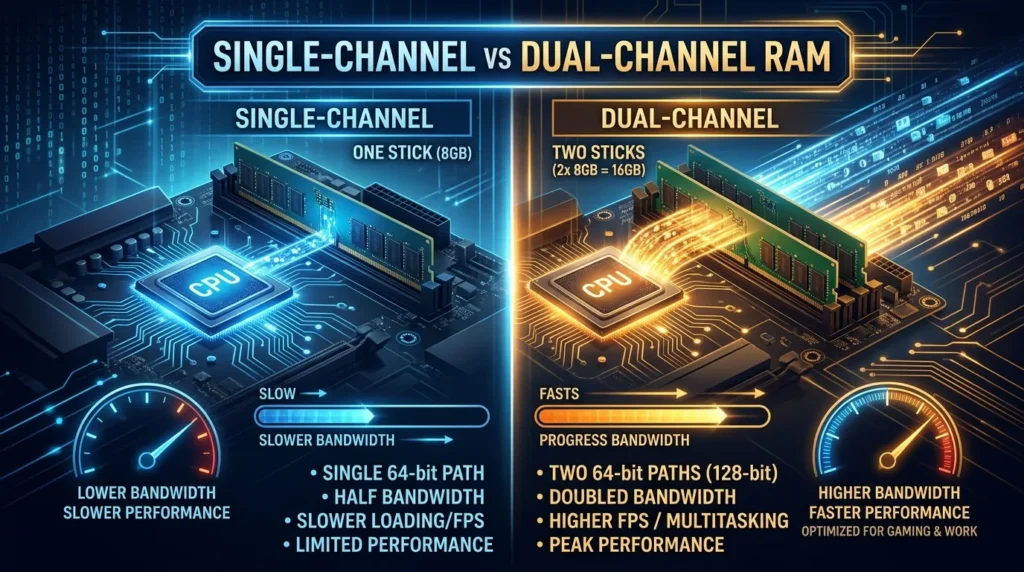
The way RAM is installed can matter.
A 16GB setup can use one 16GB memory module or two 8GB modules.
When supported by the motherboard and platform, two matching modules can run in dual-channel mode.
Dual-channel memory increases memory bandwidth compared with a single-channel setup.
The exact performance benefit depends on the hardware and workload.
This is why a 2×8GB configuration can be worth considering for a 16GB gaming PC.
You should still check your motherboard manual.
It will show which memory slots should be used.
Correct installation matters.
Should You Use 1×16GB or 2×8GB?
Both configurations provide 16GB of total memory.
The difference is how the memory is arranged.
A 2×8GB kit can provide dual-channel operation on supported systems.
A single 16GB module leaves another slot available for a future upgrade, depending on your motherboard.
Still, buying two modules can be a good choice when you want a balanced 16GB gaming setup from the start.
Before buying, check:
- Motherboard support
- Number of RAM slots
- Supported memory type
- Maximum memory capacity
- Supported speeds
- Upgrade plans
Do not assume that every PC supports every RAM kit.
DDR4 vs DDR5 for Gaming
DDR4 and DDR5 are different generations of memory technology.
You cannot normally use DDR5 memory in a DDR4-only motherboard, or DDR4 in a DDR5-only motherboard.
The motherboard and CPU platform determine what memory type you can use.
DDR5 offers newer memory technology and can provide higher memory bandwidth than DDR4.
DDR4 can still be useful for compatible systems.
If you are upgrading an existing PC, check the motherboard first.
If you are building a new gaming PC, choose memory based on the platform you are buying.
Do not choose RAM separately from the motherboard and processor.
The three parts must be compatible.
What RAM Speed Should You Choose?
RAM speed can affect performance.
The best speed depends on your CPU, motherboard, memory generation, and workload.
You should check the official specifications for your platform.
For many modern systems, memory kits support profiles that can make setup easier.
For example, some platforms use memory overclocking profiles such as AMD EXPO or Intel XMP.
These profiles can help the system use the rated memory settings.
However, support varies by hardware.
A memory kit may have a high rated speed, but the final result depends on the complete system.
Do not choose a RAM kit based only on the biggest speed number.
Compatibility is more important.
What Is XMP?
XMP stands for Extreme Memory Profile.
It is a memory profile technology associated with Intel platforms and supported by many memory kits.
It lets compatible systems use tested memory settings instead of relying only on basic default settings.
The exact options depend on the motherboard and RAM.
Some users enable an XMP profile in the motherboard firmware.
You should check your motherboard manual before changing memory settings.
A profile can make RAM setup simple, but not every system will run every rated speed without adjustment.
What Is AMD EXPO?
EXPO is a memory profile technology designed for AMD platforms.
It provides memory settings that can be loaded on supported systems.
Like XMP, it can make memory configuration easier.
Support depends on the motherboard, processor, and memory kit.
If you are building an AMD gaming PC, checking for a compatible memory kit can make setup easier.
The key word is compatibility.
Always check your motherboard’s memory support list and the processor platform before buying.
How Much RAM Do Games Use?
There is no single RAM amount used by every game.
Different games have different memory needs.
A small game may use less memory. A large open-world game may use more.
The operating system also needs memory.
Background apps add to the total.
That means you should not compare a game’s RAM use with your total installed RAM and assume the difference is wasted.
Your PC needs enough free memory for the entire workload.
The best way to understand your system is to monitor memory use while gaming.
Windows Task Manager can show memory usage.
You can open it while a game is running and check how much RAM the system is using.
This can help you decide if an upgrade is needed.
How to Check RAM Usage While Gaming
Windows includes tools that can show memory use.
Task Manager is one of the easiest options.
Press Ctrl + Shift + Esc to open it.
Then look at the memory section.
You can check overall RAM use and see which apps are using memory.
Try this while playing your normal games.
If memory use stays comfortable, you may not need more RAM.
If memory is nearly full and the system becomes slow, an upgrade may help.
Do not judge the whole PC from one game.
Check several games if you play different types.
Signs That You May Need More Than 16GB
Some users may benefit from more RAM.
You may want to consider an upgrade if you often:
- Run many apps while gaming
- Stream gameplay
- Edit video while working with other apps
- Use large creative projects
- Keep many browser tabs open
- Run virtual machines
- Play games with high memory needs
- Multitask heavily
More RAM gives the system more workspace.
It can make multitasking easier.
Still, check actual memory use before buying.
If your RAM is not close to being full, more capacity may not solve your problem.
16GB vs 32GB RAM for Gaming
The choice between 16GB and 32GB depends on your workload.
| Feature | 16GB RAM | 32GB RAM |
| Basic gaming | Suitable for many systems | More headroom |
| Multitasking | Good for moderate use | Better for heavy use |
| Streaming | Depends on workload | More room for extra apps |
| Creative work | Can be limiting in some tasks | Better for heavier workloads |
| Upgrade needs | May need an upgrade sooner | More headroom |
| Cost | Usually lower | Usually higher |
There is no universal winner.
If gaming is your main goal, 16GB may be enough.
If you want more room for multitasking, 32GB can be more comfortable.
Your budget also matters.
A better GPU may provide a larger gaming benefit than spending more on RAM when 16GB is already enough.
When Should You Upgrade From 16GB to 32GB?
Upgrade when your workload needs it.
Do not upgrade only because 32GB sounds better.
Look at your actual memory use.
If you often reach high memory usage while gaming, more RAM may help.
You can also upgrade if your games are becoming more demanding and you want more headroom.
Multitasking is another reason.
For example, a person who plays a game while running a browser, voice chat, recording software, and other tools may benefit from 32GB.
A simple gaming setup may not need it.
Your upgrade decision should be based on use, not marketing.
Can 16GB RAM Handle Gaming and Streaming?
It can, depending on the workload.
Streaming adds extra work to your PC.
The streaming software itself uses system resources. Your game is also running.
Other background programs may use more memory.
The CPU and GPU also matter.
Hardware encoding can change how much work is handled by different parts of the system.
If your PC already uses most of its 16GB while gaming, streaming can make memory pressure worse.
In that case, 32GB may provide more headroom.
Monitor your system before deciding.
This gives you real information about your setup.
Is RAM Speed More Important Than RAM Capacity?
Neither can be called more important in every situation.
Capacity answers one question:
Do you have enough memory?
Speed answers another:
How quickly can the memory system move data under the given workload?
If you do not have enough RAM, more speed will not fix the capacity problem.
If you already have enough RAM, faster memory may provide some performance improvement in supported systems.
The impact varies by game and hardware.
Start with enough capacity.
Then choose a sensible speed that matches your platform.
This is usually a better approach than buying the fastest kit available.
Does RAM Affect Game Loading Times?
RAM can affect the overall system experience, but it is not the main storage device.
Game files are stored on an SSD or hard drive.
When a game loads, data is read from storage and processed by the system.
An SSD can have a major impact on loading compared with older hard drives.
Having enough RAM helps the system run smoothly.
But adding RAM does not turn an older storage drive into a faster SSD.
If loading times are your main issue, check your storage first.
Does RAM Affect Stuttering?
It can, but stuttering has many possible causes.
Low available RAM can create memory pressure.
That may contribute to poor performance.
Yet stuttering can also come from:
- GPU limits
- CPU limits
- Shader compilation
- Storage performance
- Drivers
- Game optimization
- Background processes
- Thermal limits
- Network problems in online games
Do not replace RAM without checking the cause.
Monitor CPU, GPU, RAM, storage, and temperatures while the problem occurs.
This gives you a better starting point.
How Much RAM Is Good for a Gaming PC?
For many gaming PCs, 16GB is a practical starting point.
It can provide enough memory for gaming and normal desktop use.
More demanding users may prefer 32GB.
Very heavy workloads may need even more.
There is no single amount that fits every PC.
The right amount depends on:
- Games
- Apps
- Streaming
- Content creation
- Browser use
- Virtual machines
- Operating system
- Upgrade plans
Choose based on your real workload.
Best 16GB RAM Setup for a Gaming PC
A good 16GB setup should match your platform.
For a compatible system, two 8GB modules can be useful because they can enable dual-channel memory operation.
You should also select a memory type supported by your motherboard.
Then check the rated speed.
Finally, confirm that the kit works with your CPU and motherboard.
A simple checklist can help:
- Check your motherboard.
- Check the supported RAM generation.
- Check the maximum capacity.
- Check supported memory speeds.
- Choose a 16GB kit.
- Prefer a suitable two-module kit when appropriate.
- Install the modules in the recommended slots.
- Enable the supported memory profile if desired.
- Test system stability.
This approach is safer than buying memory based on brand or appearance alone.
RGB RAM vs Non-RGB RAM
RGB RAM can add lighting to a gaming PC.
Non-RGB RAM focuses on memory without the extra lighting.
Both can provide the same basic memory function when their specifications are otherwise similar.
Choose RGB if appearance matters to you.
Choose non-RGB if you prefer a simple build.
Do not pay extra for lighting if your main goal is gaming performance.
Your GPU, CPU, storage, and memory specifications have a more direct role in system performance.
RGB is mainly a visual feature.
Laptop Gaming With 16GB RAM
Gaming laptops can also use 16GB RAM.
The same basic idea applies.
You need enough memory for the game, operating system, and other software.
However, laptop upgrades can be different from desktop upgrades.
Some laptops have memory that cannot be replaced.
Others provide upgradeable RAM slots.
Check the exact laptop model before buying memory.
You should also check the memory type and supported capacity.
Do not assume that desktop RAM will fit a laptop.
Laptop memory modules can use different physical formats.
How to Upgrade to 16GB RAM
The upgrade process depends on your PC.
First, confirm what memory your motherboard supports.
Then check how many slots are available.
If your PC already has 8GB, you may have several upgrade options.
You might add another compatible 8GB module. You might replace the existing memory with a 16GB kit.
The best option depends on the current configuration.
Matching modules can simplify compatibility.
After installation, check whether the full capacity is detected.
Windows should show the available memory.
You can also check the motherboard firmware.
If the system does not detect the expected amount, turn the PC off and check the installation.
What Should You Look For When Buying 16GB RAM?
Do not look at capacity alone.
Check the complete specification.
Important details include:
- Memory generation
- Total capacity
- Number of modules
- Memory speed
- Timings
- Voltage
- Platform support
- Physical compatibility
- Warranty
- Motherboard support
You do not need to understand every technical term.
The most important step is compatibility.
Use your motherboard model to find supported memory.
Then choose a kit that fits your needs.
Common RAM Buying Mistakes
Many RAM problems come from simple mistakes.
Buying the Wrong Memory Type
DDR4 and DDR5 are not interchangeable.
Check the motherboard.
Ignoring Motherboard Limits
Every platform has limits.
Check supported capacity and speed.
Choosing Speed Without Checking Compatibility
A high-rated kit may not run at its advertised settings on every system.
Mixing Random RAM Kits
Different kits may have different specifications.
Mixing memory can sometimes create stability issues.
Buying More RAM Without a Need
Extra capacity is useful only when your workload can use it.
Forgetting Installation Slots
The correct slots can matter for dual-channel operation.
Check the motherboard manual.
How to Get the Most From 16GB RAM
A few simple habits can help.
Close apps you do not need.
Limit unnecessary browser tabs while gaming.
Keep your drivers and operating system updated.
Avoid running many demanding programs at once.
Monitor memory usage when troubleshooting.
Use a sensible game configuration.
Most importantly, know your system.
If your PC works well with 16GB, there is no need to upgrade just for the sake of upgrading.
Use your budget where it provides the most value.
Final Thoughts on 16GB RAM for Gaming
16GB remains a useful memory capacity for many gaming PCs.
It offers a good balance for players who mainly game and perform normal desktop tasks.
The right setup involves more than capacity.
Memory generation, speed, channel configuration, motherboard support, and system workload all matter.
A 2×8GB kit can be a practical way to build a 16GB system on a compatible platform. Players with heavy multitasking needs may prefer 32GB for extra headroom.
The best choice is based on your games and your habits.
Check your current RAM use before upgrading. If your system already has enough memory, extra RAM may not improve FPS. If memory pressure is causing problems, an upgrade can make more sense.
Conclusion
16GB RAM for gaming can be a smart choice for many PC players. It gives the system enough memory for a wide range of games and normal background tasks. The exact result depends on the game, operating system, and other programs running at the same time.
A good 16GB setup should also use compatible memory. Check the motherboard, CPU platform, RAM generation, speed, and module configuration before buying. On supported systems, two 8GB modules can provide a useful dual-channel setup.
More RAM is not always better for gaming. If 16GB is enough for your workload, moving to 32GB may not increase FPS. Heavy multitasking, streaming, content creation, and demanding applications can make 32GB more useful.
Focus on your real needs. Choose balanced hardware. Check memory usage when problems occur. That approach can help you build a gaming PC that feels fast, stable, and ready for the games you enjoy.
FAQs
1. Is 16GB RAM enough for gaming?
Yes, 16GB RAM can be enough for many gaming PCs. The exact need depends on the games you play and the other programs running at the same time.
2. Is 16GB RAM better as 2×8GB?
On a compatible motherboard, 2×8GB can enable dual-channel memory operation. This can provide more memory bandwidth than a single 16GB module.
3. Will 16GB RAM increase gaming FPS?
Not automatically. If your PC already has enough RAM, adding or changing RAM may have little effect on FPS. RAM upgrades help most when the system lacks enough memory.
4. Should I get 16GB or 32GB RAM for gaming?
Choose 16GB if you mainly game and use normal desktop apps. Consider 32GB if you often stream, multitask heavily, create content, or use games and applications that need more memory.
5. Does RAM speed matter for gaming?
Yes, RAM speed can affect gaming performance on some systems. However, capacity and compatibility come first. Choose a speed that is well supported by your CPU and motherboard.