
Choosing the best DNS for gaming can help your device find game servers and other online services more quickly. DNS does not directly control your game ping, FPS, or internet speed. Its main job is to turn website and server names into IP addresses. A good DNS resolver can make this lookup fast and reliable.
Popular choices include Cloudflare 1.1.1.1, Google Public DNS, and Quad9. The best option can vary by your ISP, location, and network path. A DNS server that is fast for one player may be slower for another.
This guide explains how DNS works for gaming, which services you can try, how to test them, and what to expect after changing your DNS settings.
What Is DNS and Why Does It Matter for Gaming?
DNS stands for Domain Name System. It works like a phone book for the internet.
When an app needs to connect to a named online service, your device may first need to find the IP address linked to that name. A DNS resolver handles this lookup.
For gamers, this process can matter when a game, launcher, or online service needs to resolve a server or service address.
However, DNS is often misunderstood.
Changing DNS does not normally make your game packets travel through a better route after the connection is established. It also does not turn a slow internet connection into a fast one.
A DNS change may help with:
- Faster DNS lookups
- More reliable name resolution
- Better access to online services
- A different DNS privacy setup
- Avoiding problems with an unreliable ISP DNS resolver
The effect can be small. Your actual gaming ping depends on many other parts of the connection.
Does DNS Lower Gaming Ping?
DNS can affect the time needed to look up a server name. It does not usually reduce the ongoing latency between your device and the game server.
For example, suppose your game needs to resolve a server address. DNS handles that first lookup. After the address is known, your game communicates with the server using its network connection.
Your gaming latency can depend on:
- Distance to the game server
- ISP routing
- Network congestion
- Wi-Fi quality
- Ethernet connection
- Server location
- Game server load
- Packet loss
- Your local network
This is why changing DNS may not produce a large change in your in-game ping.
A DNS resolver can still be useful. It is simply important to have the right expectations.
Best DNS Servers for Gaming
There is no single DNS server that is fastest for every gamer. Testing is the best way to find what works well on your network.
Here are several well-known public DNS services.
| DNS provider | Primary DNS | Secondary DNS | Main feature |
| Cloudflare | 1.1.1.1 | 1.0.0.1 | Fast and privacy-focused |
| Quad9 | 9.9.9.9 | 149.112.112.112 | Threat blocking and DNSSEC |
| Google Public DNS | 8.8.8.8 | 8.8.4.4 | Widely available public resolver |
Cloudflare officially lists 1.1.1.1 and 1.0.0.1 as its standard resolver addresses. It also supports encrypted DNS through DNS over HTTPS and DNS over TLS.
Quad9 provides 9.9.9.9 and 149.112.112.112 for its standard secure service. Its service includes threat blocking and DNSSEC validation.
Cloudflare DNS
Cloudflare 1.1.1.1 is one of the easiest DNS services to test.
Use:
- Primary: 1.1.1.1
- Secondary: 1.0.0.1
Cloudflare describes 1.1.1.1 as a public resolver designed for speed and privacy. It operates across a global network and supports encrypted DNS.
For a gaming PC, this makes Cloudflare a simple first option to test.
It does not provide a special gaming route. Instead, it gives you an alternative DNS resolver that may respond faster or more reliably than your ISP’s resolver.
Quad9 DNS
Quad9 is another option for gamers who also care about security.
Use:
- Primary: 9.9.9.9
- Secondary: 149.112.112.112
Quad9’s standard service blocks known malicious domains and supports DNSSEC validation.
This can be useful if you want DNS protection along with your normal internet connection.
Quad9 also has other resolver options. Some are designed for different filtering and routing needs.
Google Public DNS
Google Public DNS is another widely used public DNS service.
Use:
- Primary: 8.8.8.8
- Secondary: 8.8.4.4
It can be useful as a comparison point when testing DNS performance.
If Cloudflare does not perform well on your connection, Google Public DNS is one of the other services you can test.
Which DNS Should You Try First?
There is no universal winner.
Your ISP and physical location can affect DNS response times. Network paths also change. A resolver that performs well for one person may not perform the same way for another.
A simple approach is to test:
- Your ISP’s default DNS
- Cloudflare
- Google Public DNS
- Quad9
Compare the results from your own network.
For example, you could start with Cloudflare:
1.1.1.1
1.0.0.1
Then test Google:
8.8.8.8
8.8.4.4
Finally, try Quad9:
9.9.9.9
149.112.112.112
Keep the option that gives you reliable DNS resolution and good results on your connection.
How to Test DNS for Gaming
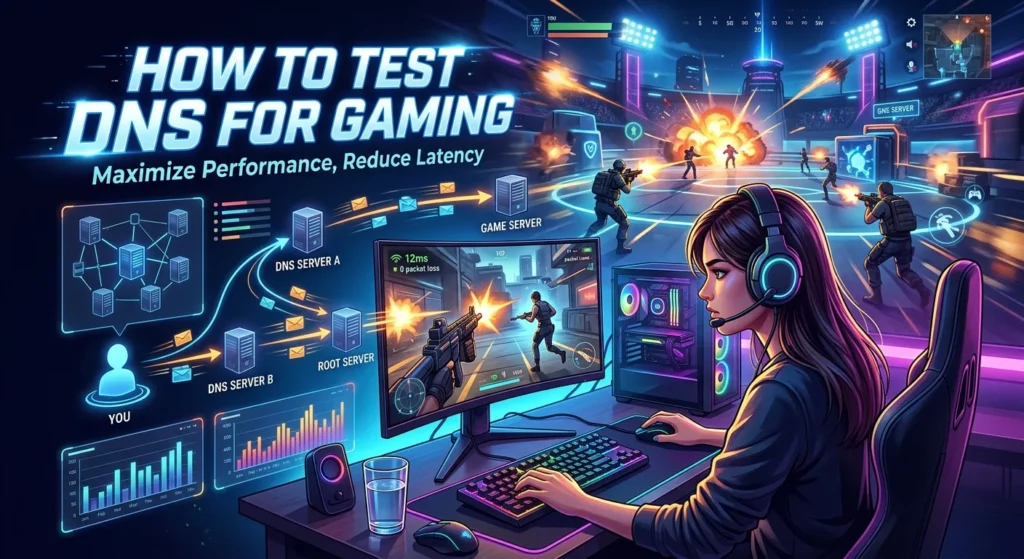
Testing DNS is more useful than simply copying a list of popular servers.
You can test DNS response time with a DNS benchmark tool or command-line tools. The goal is to compare the resolvers from your own network.
On Windows, you can use Command Prompt.
Open Command Prompt and run:
nslookup example.com 1.1.1.1
You can then test another resolver:
nslookup example.com 8.8.8.8
Try Quad9 as well:
nslookup example.com 9.9.9.9
The exact result can vary based on the domain and network.
A benchmark that sends many DNS queries can give you a broader comparison than testing one domain.
Test at Different Times
Network conditions can change during the day.
For a useful comparison, test the DNS services more than once.
You can test:
- Morning
- Afternoon
- Evening
- During busy gaming hours
Do not choose a DNS provider based on one test alone.
How to Change DNS on Windows
Changing DNS on Windows is simple.
The exact menu names can vary between Windows versions, but the basic process is similar.
- Open Settings.
- Open your network settings.
- Select your active Wi-Fi or Ethernet connection.
- Open the DNS settings.
- Choose manual DNS settings.
- Enter your preferred DNS addresses.
- Save the changes.
- Restart the connection if needed.
Cloudflare also provides Windows setup instructions for its 1.1.1.1 resolver.
Before changing anything, write down your current DNS settings. This makes it easy to return to the previous setup if needed.
How to Change DNS on a Gaming Router
You can also change DNS at the router level.
This can apply the DNS settings to devices connected to your home network.
The general process is:
- Open your router’s admin page.
- Find the internet or WAN settings.
- Locate the DNS settings.
- Enter the primary DNS address.
- Enter the secondary DNS address.
- Save the settings.
- Restart the router if required.
Cloudflare lists 1.1.1.1 and 1.0.0.1 for router configuration.
Router menus vary by manufacturer. If you cannot find the DNS section, check the router’s official manual.
DNS for PC Gaming

PC gamers have many ways to change DNS.
You can configure DNS on:
- Windows
- Linux
- Your home router
- Some network devices
Changing DNS on your PC affects that device. Changing it on your router can affect multiple devices on your network.
For a gaming PC, testing DNS directly on the PC can be useful before changing your whole network.
That lets you compare the new DNS with your current settings without affecting every device in your home.
DNS for PlayStation and Xbox
Gaming consoles also use DNS.
You can normally find DNS options inside the console’s network settings. The exact steps depend on the console and system software.
You can enter a public DNS service manually if the console allows it.
Common addresses to test include:
Cloudflare
- 1.1.1.1
- 1.0.0.1
Google Public DNS
- 8.8.8.8
- 8.8.4.4
Quad9
- 9.9.9.9
- 149.112.112.112
After changing the setting, test the connection and then check your actual game experience.
DNS and Gaming Ping
Ping measures network delay between your device and another network destination.
DNS is different.
DNS helps your device find an IP address. Ping measures the response time to a network destination.
This difference matters.
A DNS benchmark may show a very fast resolver. That does not mean your game will suddenly have much lower ping.
For example, a DNS resolver may answer your lookup quickly while your ISP still uses a longer route to the game server.
Your game ping can remain almost unchanged.
That is normal.
DNS and Packet Loss
DNS cannot fix most packet-loss problems.
Packet loss can come from:
- Weak Wi-Fi
- Bad cables
- Router problems
- ISP issues
- Network congestion
- Server problems
- Poor wireless signal
If your game has packet loss, changing DNS may not solve it.
Try a wired Ethernet connection if possible. Also check your router and internet connection.
DNS should not be treated as a general solution for every gaming network problem.
DNS and Wi-Fi Gaming
Wi-Fi quality often has a bigger effect on gaming stability than DNS.
A weak wireless signal can cause unstable latency and packet loss.
If you play over Wi-Fi, try these steps:
- Move closer to the router.
- Use the less congested Wi-Fi band when suitable.
- Keep the router away from major sources of interference.
- Update your router firmware when appropriate.
- Use Ethernet for a stable connection when possible.
Changing DNS can be worth testing, but it should not replace basic network improvements.
DNS Over HTTPS and DNS Over TLS
Some DNS services support encrypted DNS.
Two common technologies are:
- DNS over HTTPS, or DoH
- DNS over TLS, or DoT
These methods encrypt DNS requests between your device and the DNS resolver.
Cloudflare supports both DoH and DoT for 1.1.1.1.
Quad9 also supports encrypted DNS through DoH and DoT.
Encrypted DNS can improve privacy on the DNS connection. However, it does not automatically make your game connection faster.
If gaming performance is your main goal, test the setup instead of assuming encryption will improve or hurt your ping.
Should You Use Your ISP DNS?
Yes, you can.
Your ISP’s DNS service may already perform well on your connection. In some cases, it may be faster than a public DNS provider because of its network location.
That is why testing matters.
Do not change DNS just because a website says one provider is the fastest.
Compare your ISP DNS with public options.
If your current DNS works well, there may be little reason to change it.
Signs You May Want to Try a Different DNS
A DNS change may be worth testing if you notice problems with name resolution.
Examples include:
- Websites take a long time to start loading.
- Some online services fail to resolve.
- DNS errors happen often.
- Your ISP DNS is unreliable.
- A public DNS resolver performs better in your tests.
However, not every gaming problem is a DNS problem.
High ping, packet loss, and connection drops often need a different fix.
Common DNS Mistakes Gamers Should Avoid
Changing DNS is easy, but some mistakes can cause confusion.
Choosing DNS Based Only on Popularity
A popular DNS provider is not automatically the fastest for your connection.
Test it locally.
Expecting a Huge FPS Increase
DNS does not increase your graphics performance.
Your FPS depends on hardware and game settings.
Expecting DNS to Fix High Ping
DNS is not a gaming VPN or route optimizer.
It does not normally control the path used by your game traffic.
Changing DNS Too Often
Testing several services is useful. Constantly changing settings without measuring results is not.
Test one setup at a time.
Forgetting Your Old Settings
Always record your previous DNS settings before making changes.
That makes troubleshooting easier.
Best DNS for Gaming: What Should You Pick?
The practical answer is to test a few major providers.
Cloudflare is a simple starting point with 1.1.1.1 and 1.0.0.1. Cloudflare describes its resolver as fast and privacy-focused.
Google Public DNS is another useful option for comparison.
Quad9 is worth testing if you want a resolver with threat blocking and DNSSEC features.
Your own network should decide which one works best for you.
The best result is not the DNS with the biggest name. It is the resolver that gives you reliable DNS lookups and works well with your ISP and location.
How to Get Better Gaming Performance Beyond DNS
If your goal is lower ping and smoother online play, look beyond DNS.
Start with your local network.
Use Ethernet when possible. Check your router. Reduce Wi-Fi interference. Close heavy downloads while gaming. Make sure other devices are not using most of your available bandwidth.
You should also check the game server region.
A server that is physically closer to you may offer lower latency than a distant server. The available regions depend on the game.
If the problem happens only in one game, check whether other games have the same issue.
This can help show whether the problem is related to your local network or a specific game service.
Conclusion
The best DNS for gaming depends on your network. There is no single DNS resolver that will give every gamer the lowest ping.
Cloudflare, Google Public DNS, and Quad9 are useful options to test. Cloudflare uses 1.1.1.1 and 1.0.0.1, while Quad9 uses 9.9.9.9 and 149.112.112.112 for its standard secure service.
Remember that DNS mainly handles name resolution. It does not directly control FPS, packet loss, or the full route to a game server.
For the best result, compare several DNS services with your existing ISP DNS. Keep the setup that gives you reliable lookups and good overall performance. If your main problem is high gaming ping, also check your Wi-Fi, Ethernet connection, ISP routing, server location, and network congestion.
FAQs
1. What is the best DNS for gaming?
There is no universal best DNS for every gamer. Cloudflare, Google Public DNS, and Quad9 are common options to test. Your ISP and location can affect which resolver performs best.
2. Does changing DNS reduce gaming ping?
Changing DNS may improve the speed of DNS lookups, but it usually does not reduce the ongoing ping between your device and the game server. Other network factors have a larger effect on gaming latency.
3. Is Cloudflare 1.1.1.1 good for gaming?
Cloudflare 1.1.1.1 is a public DNS resolver that can be tested for gaming and general internet use. Its standard IPv4 addresses are 1.1.1.1 and 1.0.0.1.
4. Is Quad9 good for gaming?
Quad9 can be a useful DNS option if you want DNS resolution with security features. Its standard secure service uses 9.9.9.9 and 149.112.112.112 and includes threat blocking and DNSSEC validation.
5. Should I change DNS on my gaming PC or router?
You can change DNS on either your gaming PC or router. Changing it on the PC affects that device, while changing it on the router can apply the setting to devices on your home network. Testing on the PC first can be a simple way to compare results.