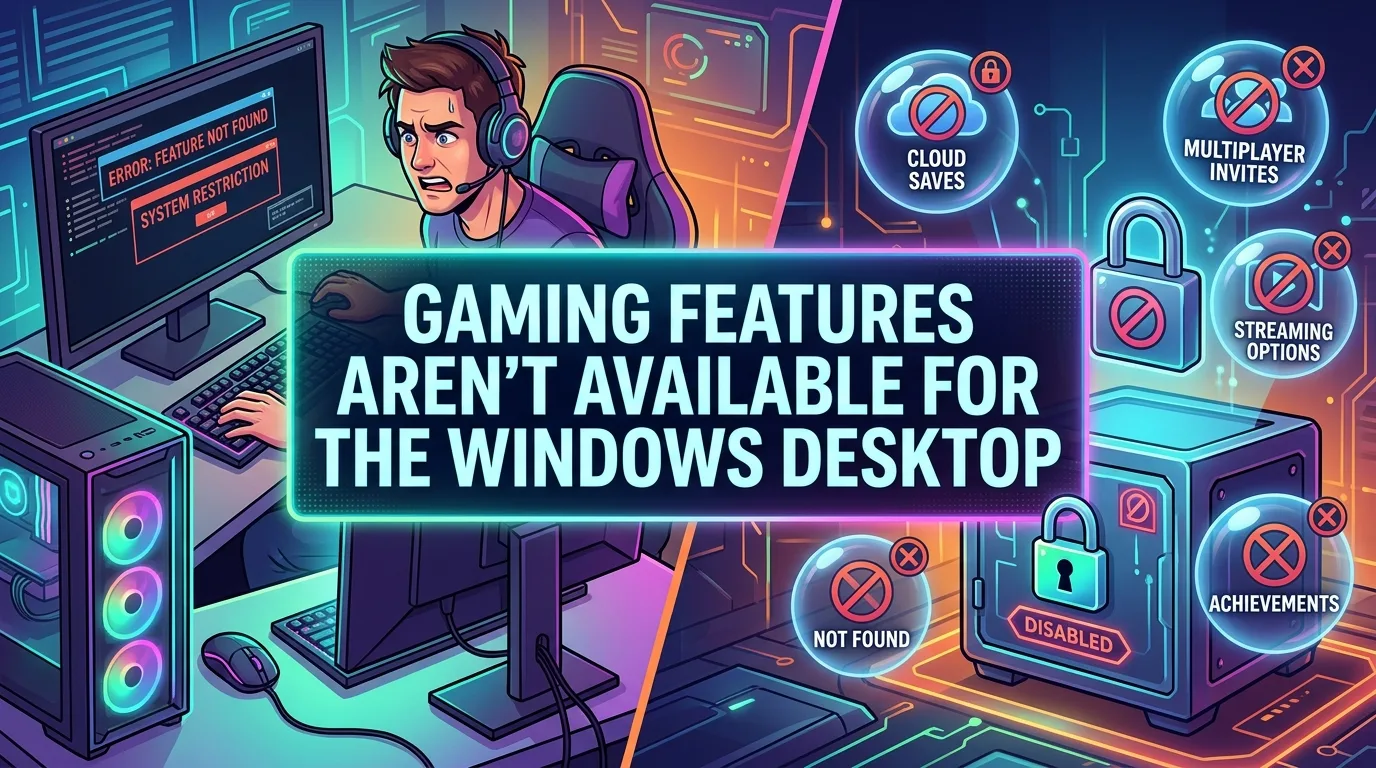
The message “gaming features aren’t available for the Windows desktop” can be confusing. It often appears when Windows gaming features do not work as expected. You may see it while using the Xbox app, Game Bar, Game Pass, or other gaming tools. The cause can be simple. Your Windows settings may block a feature.
A needed app may not be installed or updated. Gaming services may also have a problem. In some cases, your Windows edition or account settings can affect access. This guide explains what the message means and how to fix it. The steps are simple. You can check Windows settings, update key apps, repair gaming services, and test Xbox features without changing advanced system files.
What Does “Gaming Features Aren’t Available for the Windows Desktop” Mean?
The message means that a Windows gaming feature is not available in the current setup.
It does not always mean that your PC cannot run games.
Windows has many gaming tools. These tools include Xbox Game Bar, Xbox app features, Game Mode, gaming services, and other system functions.
Some features need specific Windows components.
They may also need certain permissions or services.
A problem with one part can stop another part from working.
For example, Xbox Game Bar may not open when its settings are disabled.
The Xbox app may also fail when Gaming Services has a problem.
Windows can then show a message that gaming features are not available.
The exact cause depends on when the message appears.
That is why it is best to test the basic settings first.
Why Are Gaming Features Not Available on Windows?
There are several possible reasons.
The most common causes include:
- Xbox Game Bar is disabled.
- Gaming Services is not working.
- Xbox-related apps need an update.
- Windows needs an update.
- Your Microsoft account has a problem.
- Game Bar permissions are restricted.
- Background services are not running.
- The Xbox app has damaged app data.
- Windows privacy settings block a needed feature.
- The Windows installation has a system problem.
- The feature is not supported in the current setup.
You do not need to try every advanced fix at once.
Start with the easiest checks.
Then move to repairs if the problem remains.
Check If Xbox Game Bar Is Enabled
Xbox Game Bar is one of the first things to check.
It lets you access gaming tools while using Windows.
You can use it for features such as screen capture, recording, performance information, and other gaming controls.
If Game Bar is disabled, related features may not work.
To check it:
- Open Settings.
- Select Gaming.
- Open Game Bar or the related Game Bar settings.
- Make sure the option that allows Game Bar to open is enabled.
- Test the feature again.
Windows settings can look different across versions.
The wording may also change.
Look for settings related to Xbox Game Bar and opening it with a controller or keyboard shortcut.
After enabling it, try opening Game Bar again.
Try the Windows Game Bar Shortcut
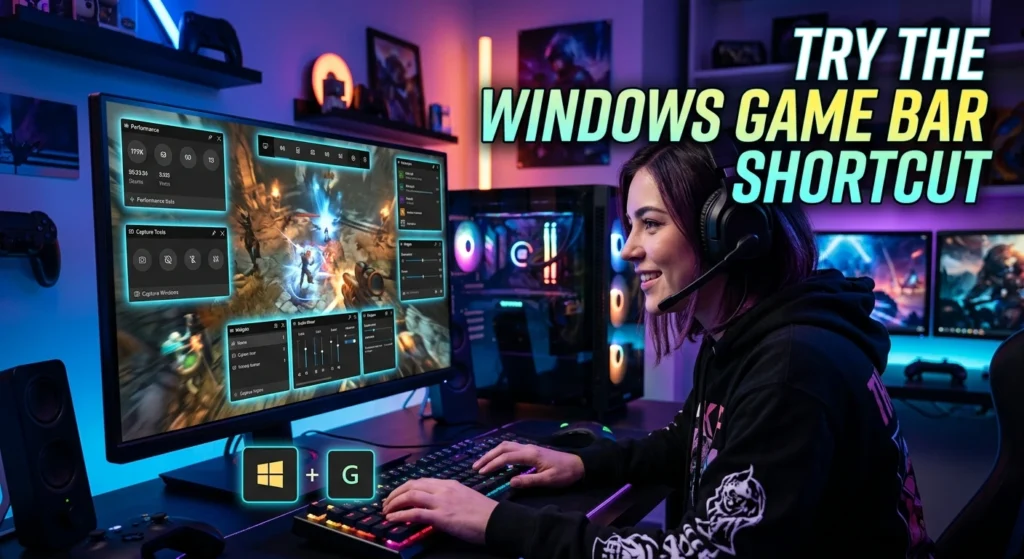
The standard Xbox Game Bar shortcut can help you test whether the feature is working.
Press:
Windows key + G
If Game Bar opens, the basic feature is available.
If nothing happens, check the Game Bar settings.
A disabled feature may prevent the shortcut from working.
Some keyboard settings or system policies can also affect shortcuts.
Try the shortcut after restarting your PC.
A simple restart can clear a temporary Windows issue.
Check Windows Game Mode
Game Mode is another Windows gaming feature.
It is designed to help Windows manage system resources while playing supported games.
Game Mode is separate from Xbox Game Bar.
Still, checking it can help confirm that Windows gaming settings are available.
Open:
Settings → Gaming → Game Mode
Make sure Game Mode is enabled if you want to use it.
Keep in mind that Game Mode does not fix every gaming problem.
It is not a replacement for a good graphics driver, stable network, or suitable hardware.
The goal here is to check whether Windows gaming settings are working normally.
Update Windows
An outdated Windows installation can cause app and gaming problems.
Microsoft regularly provides Windows updates.
These updates can include system fixes and changes for built-in features.
To check for updates:
- Open Settings.
- Select Windows Update.
- Choose Check for updates.
- Install available updates.
- Restart the PC if Windows asks you to do so.
After the restart, test the gaming feature again.
Do not skip the restart when Windows requires one.
Some updates do not fully apply until the computer restarts.
Update the Xbox App
If the message appears while using Xbox features, check the Xbox app.
An old app version can cause problems.
Open the Microsoft Store.
Then check your installed apps for updates.
If an update is available for the Xbox app, install it.
You should also check other related Microsoft apps.
The exact apps installed on your PC can vary.
After updating, restart the Xbox app.
Sign in again if needed.
Then test the feature that showed the error.
Check Gaming Services
Gaming Services is an important Windows component for many Xbox and Microsoft gaming functions.
If Gaming Services is damaged or not working correctly, Xbox features may fail.
You can check whether Gaming Services is installed.
Open the Microsoft Store and search for Gaming Services.
If Windows offers an update or repair option, follow the available steps.
Do not download Gaming Services from random websites.
Use Microsoft’s own Windows and Store tools.
This reduces the risk of installing an unsafe or modified package.
Repair the Xbox App
Windows provides app repair tools.
They can fix some app problems without removing all app data.
To try this:
- Open Settings.
- Go to Apps.
- Open Installed apps.
- Find the Xbox app.
- Open its advanced options.
- Look for Repair.
- Select it.
- Test the app again.
The exact menu names can vary by Windows version.
Repair is a useful first step because it is less disruptive than a full reset.
If repair does not help, you can consider the reset option.
Reset the Xbox App
Resetting an app can clear its stored app data.
This may help when the app itself is stuck or corrupted.
Go to the Xbox app’s advanced options.
Choose Reset if the option is available.
Be aware that resetting an app can remove local app settings or stored app data.
You may need to sign in again.
After the reset, open the Xbox app.
Sign in with the correct Microsoft account.
Then test the gaming feature.
Check the Microsoft Store
The Microsoft Store handles many Windows apps.
Xbox and Gaming Services can depend on Store components.
A problem with the Store can affect related apps.
Open the Microsoft Store.
Make sure you are signed in.
Check for available app updates.
You can also close and reopen the Store.
If Store apps are not updating, fix that problem first.
A working Store can make it easier to update Xbox-related software.
Check Your Microsoft Account
Xbox features often use a Microsoft account.
If the wrong account is signed in, some features may not work as expected.
Open the Xbox app.
Check the account shown there.
Make sure it is the account you intend to use.
You can also check the Microsoft Store account.
Some Windows users have more than one Microsoft account.
That can create confusion.
For example, the Store may use one account while the Xbox app uses another.
If you recently changed accounts, sign out and sign in again.
Then test the feature.
Check Xbox Network Settings
Some Xbox features rely on network services.
A network problem may prevent certain functions from working.
Open the Xbox app and look for its network settings.
The exact options can depend on the app version and Windows setup.
Check whether Windows reports a problem with Xbox networking.
Also test your normal internet connection.
Open a website.
Try another online service.
If the whole PC has network problems, focus on the network first.
If only Xbox features fail, the issue may be with the Xbox software or related services.
Restart Your PC
A restart sounds simple.
It can still solve many temporary Windows problems.
Gaming services may become stuck.
Apps can also remain in a bad state after an update.
Restart Windows before trying complex fixes.
After the restart, open the Xbox app.
Press Windows + G to test Game Bar.
Then check the feature that showed the original message.
If it works, you may not need any further changes.
Check Windows Privacy Settings
Windows privacy settings can control access to certain features.
Gaming tools may need access to your microphone, camera, or other system features depending on what you are trying to use.
For example, recording or voice functions can require additional permissions.
Open:
Settings → Privacy & security
Review the permissions related to the feature you are using.
Do not enable every permission without a reason.
Only allow the access needed for the feature.
This keeps your privacy settings more controlled.
Check Microphone Access for Game Features
If the error appears while using voice features, check microphone access.
Windows can control which apps may use your microphone.
Open the privacy settings.
Find Microphone permissions.
Make sure microphone access is enabled when required.
Also check whether the Xbox app or another gaming app is allowed to use it.
This will not fix every gaming feature issue.
It is useful when the problem involves voice chat or recording.
Check Screen Recording Permissions
Game Bar includes capture features.
Windows may require access for screen recording.
If Game Bar opens but recording does not work, check your capture settings.
Open Windows gaming settings.
Review the available capture options.
Then check privacy permissions if needed.
Make sure you are testing the feature with a supported app or game.
Some desktop activities may behave differently from games.
Check Your Windows Edition
Your Windows edition can matter.
Some Windows features differ between editions.
A managed computer can also have policies that restrict gaming features.
This is common on computers controlled by an organization.
If the PC belongs to a school or workplace, some settings may be controlled by an administrator.
In that case, changing local settings may not solve the problem.
You may need the administrator to allow the feature.
For a personal PC, check the Windows edition in:
Settings → System → About
Look at the Windows edition information.
This can help you understand which version is installed.
Check If Your PC Is Managed
A managed Windows PC may have restrictions.
Group policies can disable certain Windows features.
Security software can also limit app behavior.
If you use a personal gaming PC, this is less likely.
If the PC belongs to a company, school, or other organization, it becomes more important.
Do not remove security controls just to enable a gaming feature.
Instead, contact the system administrator if the computer is managed.
Restart Gaming-Related Services
Windows uses background services for many functions.
If a needed service is stopped, an app may fail.
You can view Windows services through the Services app.
Press the Windows key.
Search for:
Services
Open the app.
Look for services related to Xbox and gaming.
Do not change random services.
Changing the wrong service can cause other Windows features to fail.
Only restart a service when you know it is related to the problem.
If you are unsure, use the simpler app repair and Windows Update steps first.
Reinstall Gaming Services Carefully
If Gaming Services is badly damaged, reinstalling it may help.
This is a more advanced step.
Do not use random scripts from unknown websites.
Commands shared online can change important Windows settings.
They may also remove packages that another Windows feature needs.
Before using advanced PowerShell commands, make sure the instructions are from a trusted source.
For most users, Microsoft Store repair and Windows app repair should be tried first.
Advanced commands should be the next step only when basic troubleshooting fails.
Check Xbox Game Bar Updates
Game Bar is distributed as a Windows app component.
Its version can change over time.
If Game Bar does not work, check the Microsoft Store for updates.
Search for Xbox Game Bar.
If an update is available, install it.
Then restart Windows.
Press Windows + G again.
If Game Bar opens, the problem may have been an outdated app component.
Check Graphics Drivers
Gaming features can interact with your graphics hardware.
A graphics driver problem may affect capture or game-related features.
Check your graphics card manufacturer for driver updates.
Common GPU manufacturers include NVIDIA, AMD, and Intel.
Use the official driver source for your graphics hardware.
Avoid unknown driver download sites.
After installing a driver update, restart the PC.
Then test the gaming feature again.
Do not assume the graphics driver is the cause if normal games already work well.
Focus on it when the problem involves recording, overlays, or graphics-related features.
Disable Conflicting Overlays
Some gaming apps use overlays.
Steam, Discord, GPU software, Xbox Game Bar, and other programs can add overlays.
Several overlays running at the same time can sometimes cause conflicts.
If Game Bar does not work inside a game, try disabling other overlays.
Do not disable everything at once.
Start with one overlay.
Test the game.
If the problem remains, restore the setting and test another one.
This method helps identify the source of the conflict.
Check Full-Screen Game Settings
Some Game Bar features depend on how a game runs.
A game in full-screen mode may behave differently from a game in borderless or windowed mode.
If Game Bar works on the desktop but not inside a game, check the game’s display mode.
Try borderless or windowed mode for testing.
Then press Windows + G.
If the overlay appears, the issue may relate to the game’s display mode or another overlay.
This does not mean you must keep the game in windowed mode.
It is simply a useful troubleshooting test.
Check Xbox Game Bar With a Simple Test
You can test Game Bar without starting a demanding game.
Open a normal Windows application.
Press:
Windows + G
If the Game Bar interface opens, the feature itself is working.
Next, launch a game.
Press the same shortcut.
Compare the results.
If Game Bar works on the desktop but not in the game, focus on the game, overlay settings, permissions, and graphics software.
If it does not work anywhere, focus on Windows and Game Bar settings.
This simple test can save time.
Run Windows Troubleshooters
Windows includes troubleshooting tools.
The exact tools available can change between Windows versions.
Look under Windows settings for troubleshooting options.
You may find tools for apps, network problems, audio, or other system components.
A troubleshooter may not fix every Xbox problem.
It can still identify common configuration issues.
Run the relevant troubleshooter.
Follow its instructions.
Restart Windows after making changes when required.
Check System File Health
Windows system files can become damaged.
This can affect built-in features.
If many Windows functions are failing, system file repair may be useful.
Windows provides built-in command-line tools for checking system files.
Two common tools are:
- System File Checker
- Deployment Image Servicing and Management
These tools are more advanced than normal Settings options.
Open Command Prompt or PowerShell with administrator rights only when needed.
Use trusted Microsoft documentation for the exact commands.
Do not paste unknown commands from random forums.
A command can make system-level changes.
Do Not Delete Random Windows Files
Some online guides recommend deleting folders or registry entries.
Be careful.
The Windows registry contains important system settings.
Deleting the wrong entry can cause new problems.
The same applies to Windows system folders.
Do not remove Gaming Services files manually unless you have reliable instructions.
Start with repair tools.
Use built-in Windows options whenever possible.
This keeps troubleshooting safer.
When the Error Is Not About Your Game
The phrase may sound like a game problem.
It may not be.
The issue can be related to Windows itself.
For example, a game can launch normally while Xbox Game Bar fails.
That means the game may be fine.
The problem could be the Windows gaming layer.
This distinction matters.
Do not reinstall a large game before checking Windows gaming features.
Reinstalling the game may waste time if the Xbox app or Game Bar is the real problem.
When to Reinstall the Xbox App
Reinstalling can help when the app remains broken after repair and reset.
Before doing this, make sure your Windows system is updated.
Also check the Microsoft Store.
Then remove the Xbox app if Windows allows it.
Restart the PC.
Install the latest version from the Microsoft Store.
Sign in again.
Test the feature.
Reinstallation should be a later step.
It is not the first thing you need to try.
When to Contact Microsoft Support
You may need official support when normal troubleshooting does not work.
This is especially true if:
- Windows gaming features fail across multiple apps.
- Gaming Services cannot be installed.
- Microsoft Store apps fail to update.
- Your Microsoft account shows an unusual error.
- Windows reports system-level problems.
- The PC is managed by an organization.
- A feature is missing despite a supported setup.
Give support clear information.
Tell them what feature fails.
Mention the exact message you see.
Also explain which troubleshooting steps you already tried.
That can make the support process easier.
A Simple Fix Order to Follow
Do not try random fixes.
Use this order:
- Restart Windows.
- Check Windows Update.
- Update the Xbox app.
- Update Xbox Game Bar through the Microsoft Store.
- Check Game Bar settings.
- Test Windows + G.
- Check Microsoft account sign-in.
- Check Gaming Services.
- Repair the Xbox app.
- Reset the Xbox app if needed.
- Check privacy permissions.
- Check graphics drivers.
- Test for overlay conflicts.
- Use advanced system repair only if needed.
This order starts with low-risk steps.
It also helps you find the cause.
How to Prevent Gaming Feature Problems
You can reduce future problems with a few habits.
Keep Windows updated.
Update Microsoft Store apps when needed.
Use official graphics drivers.
Avoid unknown Windows scripts.
Do not install random system tools.
Keep your Microsoft account information correct.
Restart Windows after major updates.
Also avoid running too many overlay tools at once.
These steps cannot prevent every issue.
They can make Windows gaming features easier to maintain.
Is This Error a Sign That Windows Cannot Run Games?
No.
The message does not automatically mean that your PC cannot play games.
Windows gaming features are separate from the basic ability to run many PC games.
A game can work even when Xbox Game Bar or another gaming feature does not.
If your game launches and runs normally, the issue may be limited to a specific Windows gaming tool.
Check the feature that is actually failing.
This prevents unnecessary changes to your game installation.
Can Windows Updates Fix Gaming Features?
Yes, an update can fix a gaming feature problem when the cause is a Windows or app issue.
Updates can also change how Windows gaming components work.
That is why checking Windows Update is an early troubleshooting step.
Still, an update is not a guaranteed fix.
If the message continues, move to the next checks.
Look at Xbox Game Bar, Gaming Services, Microsoft Store, account settings, and app repair.
Can Internet Problems Cause This Message?
Internet problems can affect Xbox services.
They can also prevent account or online features from working.
However, a network issue is not always the reason for this exact message.
Test your internet first.
If websites and other online apps work, the problem may be specific to Xbox services or Windows.
If the entire computer has network problems, fix the connection before testing Xbox features again.
Can Antivirus Software Block Gaming Features?
Security software can sometimes restrict applications.
This depends on the security product and its settings.
Windows Security also has rules that can affect applications.
Do not turn off antivirus protection without a clear reason.
If you think security software is blocking the Xbox app, check its application permissions.
Use the software’s trusted settings.
Avoid leaving security protection disabled.
Your gaming PC still needs protection while you troubleshoot.
What If None of the Fixes Work?
If the problem remains after basic troubleshooting, do not keep changing random settings.
Write down the exact error.
Record when it appears.
Note whether Game Bar opens.
Check whether the Xbox app works.
See whether other Microsoft Store apps work.
Also note whether normal games launch.
This information can help identify the failing part.
If the issue is system-wide, consider Windows repair options.
For a serious Windows problem, back up important files before making major system changes.
Conclusion
The message “gaming features aren’t available for the Windows desktop” does not always mean that your PC has a serious gaming problem. It often points to an issue with a Windows gaming feature, Xbox Game Bar, Gaming Services, the Xbox app, permissions, or related system settings.
Start with simple steps. Restart Windows and install updates. Check Xbox Game Bar and press Windows + G. Update the Xbox app and Microsoft Store apps. Then check Gaming Services and your Microsoft account. If the issue continues, use app repair or reset options.
Avoid risky registry edits and unknown scripts. Use official Windows tools and trusted sources for advanced repairs. Most importantly, identify which feature is failing before changing your game or graphics settings. This makes troubleshooting faster, safer, and easier.
FAQs
1. What does “gaming features aren’t available for the Windows desktop” mean?
It means a Windows gaming feature is not available or is not working correctly in your current setup. The issue may involve Xbox Game Bar, Gaming Services, the Xbox app, permissions, or Windows settings.
2. How do I fix gaming features that are not available on Windows?
Start by restarting your PC and checking Windows Update. Then update the Xbox app and Game Bar, check Game Bar settings, test Windows + G, and repair the Xbox app if needed.
3. Why is Xbox Game Bar not working on my Windows PC?
Xbox Game Bar may be disabled, outdated, damaged, or affected by Windows settings. Check its gaming settings, update it through the Microsoft Store, and use the app repair option if necessary.
4. Does Gaming Services affect Windows gaming features?
Yes. Gaming Services is used by various Xbox and Microsoft gaming functions. If it is missing, damaged, or not working correctly, some gaming features may fail.
5. Can this error stop PC games from running?
Not necessarily. The message can affect a Windows gaming feature without stopping normal PC games from launching. Test the game and the specific gaming feature separately to find the real problem.