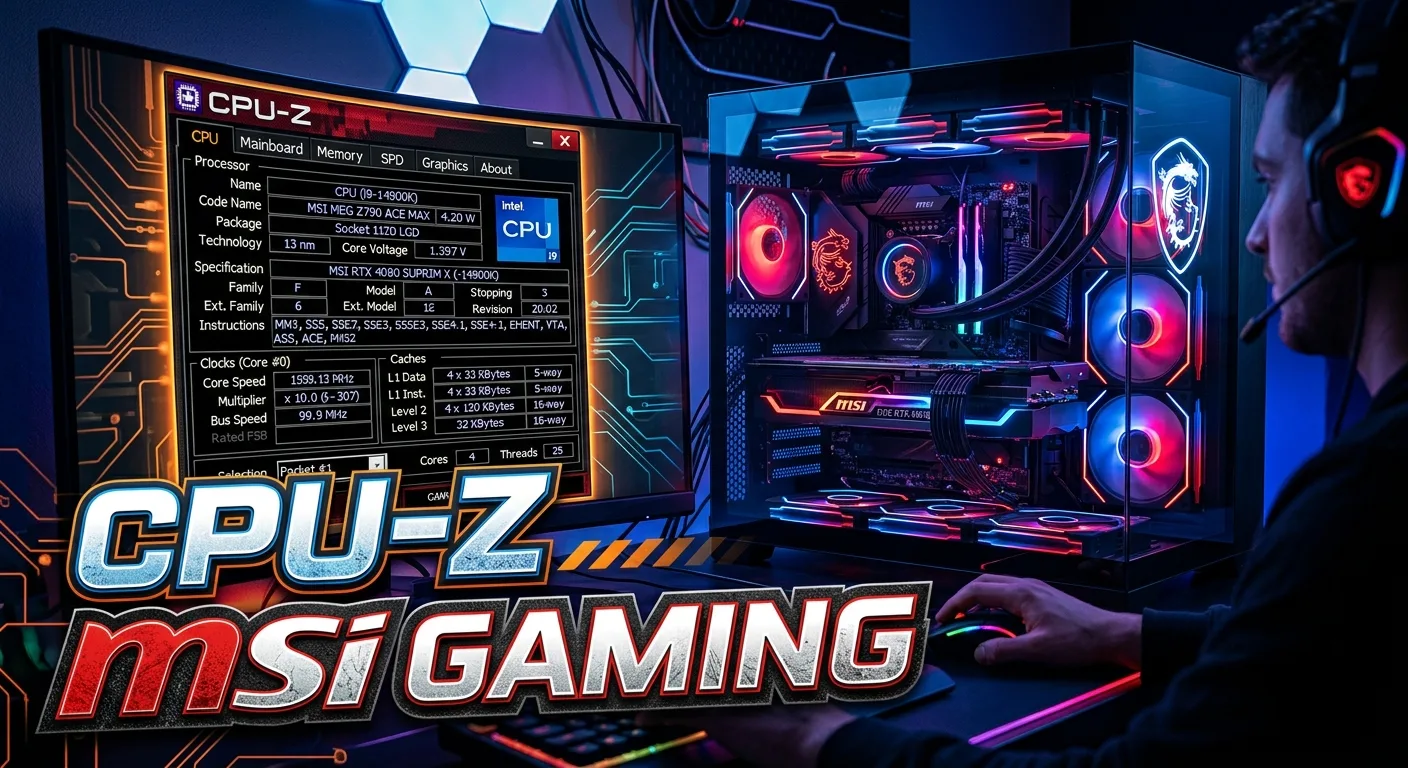
If you use an MSI gaming PC or motherboard, CPU-Z can help you learn what is inside your system. CPU-Z is a free tool from CPUID. It shows key details about your processor, motherboard, RAM, and other parts. It can also show live clock speeds. This makes it useful for checking an MSI gaming system after a new build, upgrade, BIOS change, or RAM setup.
The tool is not an MSI-only program. It works with many PC brands, and CPUID provides a dedicated MSI Gaming version on its CPU-Z download page.
In this guide, you will learn what CPU-Z does, how to read its tabs, how to use it with MSI hardware, and how to check your CPU, RAM, motherboard, and system details in a simple way.
What Is CPU-Z?
CPU-Z is a system information tool made by CPUID.
It reads key data from your PC.
You can use it to see:
- CPU name
- CPU code name
- CPU speed
- CPU core count
- CPU thread count
- CPU cache
- Motherboard model
- Motherboard chipset
- BIOS details
- RAM type
- RAM size
- RAM speed
- RAM timings
- Memory module data
- Real-time CPU and memory frequency
CPUID describes CPU-Z as freeware that gathers information about major parts of a PC. The tool supports Windows and Android. The Windows version can show processor, mainboard, memory, and live frequency data.
For an MSI gaming PC, this can be very useful.
You may know that your PC has an MSI motherboard.
But you may not know the exact model.
You may also not know which RAM kit is installed.
CPU-Z can show this data in one place.
Why Use CPU-Z on an MSI Gaming PC?
MSI makes many gaming motherboards and PCs.
These systems can use different CPUs, chipsets, RAM kits, and BIOS versions.
CPU-Z gives you a quick way to see the hardware in your system.
This helps when you need to:
- Check a new PC build
- Confirm your CPU model
- Check your RAM size
- Check RAM speed
- Find your motherboard model
- Check BIOS information
- Review CPU clocks
- Check memory timings
- Prepare for a hardware upgrade
- Troubleshoot a system
You do not need to open the PC case just to see basic hardware details.
This is one of the main reasons CPU-Z is useful.
It gives you system data without making the process hard.
Is CPU-Z Made by MSI?

No.
CPU-Z is made by CPUID.
MSI is a separate company that makes gaming PCs, motherboards, graphics cards, laptops, and other PC hardware.
However, CPUID provides a MSI Gaming version of CPU-Z on its official CPU-Z page. The download page lists MSI Gaming alongside other customized editions, such as ASUS ROG, Gigabyte AORUS, and other hardware brands.
So the phrase CPU-Z MSI Gaming can refer to the MSI Gaming version of CPU-Z or to using CPU-Z to check an MSI gaming system.
The key point is simple:
CPU-Z is CPUID software, not MSI software.
CPU-Z MSI Gaming Version
CPUID offers customized CPU-Z editions for several gaming brands.
One of them is the MSI Gaming edition.
This version is still CPU-Z.
The main purpose is still system information.
The MSI Gaming branding helps match the tool to MSI gaming hardware.
When you visit the official CPU-Z download page, you can find the MSI Gaming setup options in the version history and download area.
For safety, use the official CPUID site when downloading CPU-Z.
Avoid random download sites.
This matters because system tools can access detailed hardware information.
A trusted source is the better choice.
How to Download CPU-Z for MSI Gaming
The easiest way is to use the official CPUID CPU-Z page.
The official page provides current CPU-Z releases and download options. It also lists different versions and editions.
A simple process is:
- Open the official CPUID CPU-Z page.
- Find the current CPU-Z release.
- Look at the available Windows options.
- Choose the MSI Gaming version if you want that edition.
- Download the setup file or ZIP version.
- Install or run CPU-Z.
- Open the program.
- Review the hardware tabs.
CPUID also provides standard Windows versions.
You do not have to use the MSI Gaming edition to read MSI hardware.
The standard CPU-Z version can also identify compatible PC hardware.
CPU-Z and MSI Motherboards
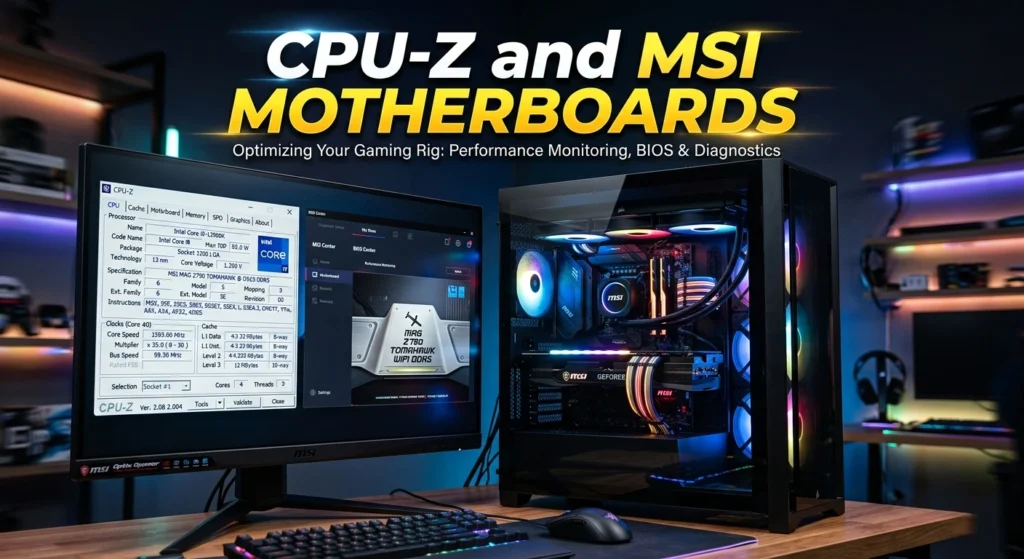
CPU-Z is useful with MSI motherboards because it can show the board model and chipset.
Open CPU-Z.
Then select the Mainboard tab.
You can usually find information such as:
- Manufacturer
- Model
- Chipset
- Southbridge or related platform details
- BIOS brand
- BIOS version
- BIOS date
- Graphics interface data
The exact information shown can vary by platform and CPU-Z version.
The motherboard model is one of the most useful details.
Why?
Because the model tells you which MSI board you have.
That makes it easier to find the right support page.
Finding Your MSI Motherboard Model
You may need the exact board name before you upgrade your PC.
For example, MSI has many models with similar names.
A board may belong to a gaming family.
It may also have a Wi-Fi version.
Small changes in the model name can matter.
CPU-Z can help you identify the model.
Go to:
CPU-Z → Mainboard
Look for the motherboard manufacturer and model.
Write down the full model name.
Then use that model on the official MSI support site.
MSI says its motherboard support pages provide information such as CPU support, downloads, BIOS updates, manuals, and other support tools.
This is better than guessing your motherboard model.
CPU-Z CPU Tab
The CPU tab is one of the most useful parts of CPU-Z.
It shows information about your processor.
You may see:
- Name
- Code name
- Package
- Technology
- Core voltage
- Core speed
- Multiplier
- Bus speed
- Cache
- Cores
- Threads
The exact fields can vary with the CPU.
This tab can help you confirm that your MSI gaming PC is using the CPU you expected.
For example, if you built a PC with a certain processor, CPU-Z can help you confirm the detected model.
This is useful after a new build.
It is also useful after buying a used PC.
Checking CPU Cores and Threads
CPU-Z can show your processor’s core and thread count.
This is useful when checking a gaming PC.
A modern gaming CPU may have several cores and threads.
The number depends on the processor.
You should not judge a CPU only by its core count.
Architecture matters too.
Clock speed matters too.
Cache matters too.
CPU-Z helps you see these details together.
This makes it a good tool for basic hardware checks.
Checking CPU Clock Speed
CPU-Z can show the current CPU core speed.
This is important because CPU speed can change while the PC is running.
Modern processors can raise or lower clock speed based on load, power, temperature, and system settings.
So you may see the number move.
That does not always mean there is a problem.
For example, a CPU may run at a lower clock when the PC is idle.
It may rise when you start a demanding task.
This is normal behavior for many modern CPUs.
Do not judge CPU performance from one clock reading alone.
CPU-Z Cache Information
The CPU tab also shows cache information.
Cache is fast memory used by the processor.
It helps the CPU access frequently needed data.
CPU-Z can show different cache levels.
The exact cache layout depends on your processor.
This information can help you compare CPUs.
It can also help you confirm the exact processor model.
For normal gaming, you do not need to memorize every cache detail.
Still, the data is useful when checking hardware specifications.
CPU-Z Mainboard Tab
The Mainboard tab is especially helpful for MSI users.
It can show the motherboard manufacturer and model.
It can also show chipset information.
You can use this tab to check your MSI board before a hardware upgrade.
This matters because motherboard compatibility is important.
For example, CPU compatibility depends on the board platform and support status.
MSI recommends checking its official CPU support information before installing or replacing a CPU.
CPU-Z helps you identify the board.
MSI’s support page helps you confirm compatibility.
These two steps work well together.
Checking BIOS Information
The Mainboard tab can also show BIOS details.
BIOS is important because it helps the motherboard start and manage the hardware.
BIOS updates can add support for newer processors.
They can also fix bugs or improve system support.
But you should not update BIOS just because a newer version exists.
First, identify your exact motherboard.
Then check the official MSI support page.
MSI notes that some CPU models may require specific BIOS versions.
This is why the exact motherboard model matters.
CPU-Z Memory Tab
The Memory tab shows information about your system RAM.
This is very useful for gaming PCs.
You can use it to check:
- RAM type
- Total memory
- Memory channel mode
- DRAM frequency
- Timings
- Command rate
The numbers may look complex at first.
You do not need to understand every field.
Start with the basics.
Check the total RAM.
Then check the memory type.
Then look at the current memory frequency.
CPU-Z RAM Speed Explained
RAM speed can be confusing.
CPU-Z often reports the real DRAM clock.
DDR memory transfers data on more than one edge of the clock signal.
Because of this, the effective data rate is higher than the raw clock shown in some tools.
For example, a DDR memory kit marketed with a certain effective speed may show about half that number as the DRAM frequency in CPU-Z.
This is normal.
Do not assume your RAM is running at half speed just because CPU-Z shows a lower frequency number.
The value needs to be understood in the context of DDR memory.
CPU-Z SPD Tab
The SPD tab can provide more detail about individual memory modules.
SPD means Serial Presence Detect.
Memory modules store information that helps the system identify the module.
CPU-Z can read this information.
You may see data such as:
- Memory manufacturer
- Module size
- Module type
- Supported timings
- JEDEC profiles
- Memory profile information
This can help when you want to identify your RAM.
It can also help when you plan a memory upgrade.
If you want to buy another RAM module, do not rely only on the name shown in CPU-Z.
Check the full specifications.
Matching memory can reduce compatibility problems.
CPU-Z and XMP
Intel XMP is a memory profile feature used on supported platforms.
It can let compatible RAM run at its rated profile settings.
If your RAM is running at a basic default speed, the system may not be using its advertised performance profile.
CPU-Z can help you see the current memory frequency and timings.
However, CPU-Z does not replace your MSI BIOS.
If you need to enable or change a memory profile, use the motherboard’s supported firmware settings.
On an MSI motherboard, this is handled through the BIOS.
Always use the memory profile supported by your hardware.
CPU-Z and AMD EXPO
AMD EXPO is a memory profile technology for supported AMD platforms.
Like XMP, it is related to memory settings.
CPU-Z can help you check the resulting memory frequency and timings.
But CPU-Z does not enable EXPO.
You normally manage such settings in the motherboard firmware.
If you have an MSI AMD gaming motherboard, check the MSI manual and support information for the correct memory setup.
Do not copy settings from another PC.
Different CPUs and memory kits can behave differently.
CPU-Z Graphics Information
CPU-Z also has a Graphics tab.
This can show graphics hardware information.
Depending on your system and CPU-Z version, you may see GPU name and clock information.
This can help confirm which graphics device the system detects.
For a gaming PC, this is useful after:
- Installing a graphics card
- Building a new PC
- Updating hardware
- Troubleshooting display problems
Keep in mind that CPU-Z is mainly a hardware information tool.
It is not a full GPU monitoring solution.
For detailed temperatures, fan speeds, and sensor data, a dedicated monitoring tool may be more suitable.
CPU-Z for MSI Gaming Laptops
CPU-Z is not limited to MSI desktop motherboards.
It can also be useful on MSI gaming laptops.
An MSI gaming laptop may have:
- Mobile Intel CPU
- Mobile AMD CPU
- Dedicated GPU
- DDR memory
- NVMe storage
- MSI firmware
CPU-Z can help identify the processor and memory.
It can also show some system and motherboard information.
This can be helpful if you do not know the exact hardware inside your laptop.
For laptop upgrades, always check the exact model.
Laptop parts can have tighter compatibility limits than desktop parts.
CPU-Z and MSI Gaming Performance
CPU-Z does not make your MSI gaming PC faster by itself.
this does not add CPU power.
It does not add RAM.
It does not increase GPU performance.
Instead, it helps you understand the hardware you already have.
This makes it a useful diagnostic and information tool.
For example, suppose your MSI gaming PC feels slow.
CPU-Z can help you check the CPU model and RAM setup.
You can then use other tools to check temperatures, storage health, GPU load, and system performance.
This creates a better troubleshooting process.
Can CPU-Z Test Gaming Performance?
CPU-Z is mainly a hardware information tool.
It is not a complete gaming benchmark.
You should not use CPU-Z alone to decide how well a game will run.
Gaming performance depends on many parts.
These include:
- CPU
- GPU
- RAM
- Storage
- Game settings
- Game engine
- Drivers
- Cooling
- Power limits
- Resolution
A game can run well on one MSI gaming PC and poorly on another.
The difference may come from the GPU.
It may also come from cooling or power settings.
CPU-Z helps you identify hardware.
It does not tell the whole performance story.
CPU-Z Benchmark Features
Some CPU-Z releases include benchmark functions.
These can give you a simple way to test CPU performance.
A CPU benchmark is different from a game benchmark.
A CPU test focuses on processor work.
A game uses the whole system.
The GPU may be the main limit.
So do not treat a CPU-Z score as a direct gaming FPS score.
It is better used as one data point.
If you compare CPUs, keep the test setup as similar as possible.
Use the same operating conditions.
Also remember that benchmark scores can change with system settings.
CPU-Z Validator
CPU-Z also has a validation system.
CPUID has continued to develop CPU-Z Validator features. The CPUID site announced CPU-Z Validator V3 in August 2026 as part of CPU-Z V3.01.
Validation can be useful when you want to share system information.
It can show details about a tested system.
For enthusiasts, this can be useful when checking clock speeds and hardware data.
But you do not need validation for normal PC use.
If your goal is simply to identify your MSI motherboard or CPU, the normal CPU-Z tabs are enough.
CPU-Z MSI Gaming for Overclocking
CPU-Z can be useful for people who overclock.
It can show CPU clocks, multiplier data, memory settings, and other hardware information.
This lets you see what your system is doing.
But CPU-Z does not perform all overclocking tasks.
Overclocking is usually managed through motherboard firmware or approved software.
MSI motherboards may provide their own BIOS controls for supported hardware.
If you overclock, watch temperatures and system stability.
A higher clock can also increase power use and heat.
Do not change settings without knowing what they do.
CPU-Z for Checking a New MSI Gaming PC
CPU-Z is useful after building a new gaming PC.
You can use it as a quick check.
Open the program.
Then check the main tabs.
First, check the CPU.
Make sure the processor name matches what you installed.
Next, check the Mainboard tab.
Confirm the MSI motherboard model.
Then open the Memory tab.
Verify the total RAM.
Check the memory type.
Check the frequency.
Then look at the Graphics tab.
Confirm that the expected graphics hardware is detected.
This takes only a short time.
It can catch simple mistakes early.
CPU-Z After a Hardware Upgrade
CPU-Z can also help after an upgrade.
Suppose you replace your CPU.
Open CPU-Z.
Check the CPU tab.
Make sure the new processor is detected.
If you upgrade RAM, check the Memory and SPD tabs.
If you change the motherboard, check the Mainboard tab.
This gives you a quick hardware check.
For more serious issues, use the hardware maker’s support tools too.
MSI provides motherboard support pages with downloads, manuals, BIOS information, CPU support, and other resources.
CPU-Z and MSI BIOS Updates
CPU-Z can show your current BIOS information.
This can help you know what version your MSI motherboard uses.
But CPU-Z should not be your only source for BIOS update instructions.
Use MSI’s official support page for the exact motherboard.
Find the board.
Open its support section.
Then check the BIOS files and instructions.
MSI provides CPU support information for its motherboards and notes that some CPUs may need certain BIOS versions.
Never flash a BIOS file made for a different motherboard model.
The exact model matters.
CPU Z vs MSI Center
CPU-Z and MSI Center have different jobs.
CPU-Z focuses on system information.
MSI Center is MSI’s own software platform for supported MSI hardware.
You may use MSI Center for MSI-specific features.
You may use CPU-Z to inspect hardware details.
The two tools are not direct replacements.
A simple way to think about them is:
ToolMain purposeCPU-ZHardware informationMSI CenterMSI system features and managementMSI BIOSFirmware and hardware settingsHWMonitorHardware sensor monitoringGPU softwareGraphics settings and monitoring
You can use more than one tool.
Each tool has a different role.
CPU-Z vs HWMonitor
CPU-Z and HWMonitor are both from CPUID.
But they serve different purposes.
CPU-Z focuses on hardware identification and system information.
HWMonitor focuses more on health sensors.
HWMonitor can monitor values such as temperatures, voltages, and fan speeds. CPUID describes it as a hardware monitoring program that reads PC health sensors.
If you want to know what CPU you have, use CPU-Z.
If you want to watch CPU temperature, HWMonitor may be more useful.
You can also use both.
CPU-Z for Troubleshooting MSI Gaming PCs
CPU-Z can help with basic troubleshooting.
It is not a repair tool.
But it can give you useful information.
For example, if you think your RAM upgrade failed, CPU-Z can help you check whether the memory is detected.
If you forgot your motherboard model, CPU-Z can show it.
If you are unsure which CPU is installed, CPU-Z can identify it.
This information can help you search for the right driver, BIOS file, manual, or upgrade guide.
The more exact your hardware information is, the less likely you are to choose the wrong file.
CPU-Z Does Not Replace MSI Support
CPU-Z is useful.
But it is not a replacement for MSI support.
MSI provides official information for its own hardware.
This includes:
- BIOS files
- Drivers
- Manuals
- CPU support
- Product specifications
- Compatibility data
- Support articles
MSI’s support system lets users search for their exact motherboard and view the available support resources.
Use CPU-Z to identify the hardware.
Then use MSI for official support files and instructions.
This is a simple and safe workflow.
Common CPU-Z Mistakes
CPU-Z is easy to use, but some values can confuse new users.
One common mistake is reading DRAM frequency as the full DDR speed.
Another is assuming the current CPU clock must always match the advertised maximum.
That is not how modern processors work.
Clock speeds can change.
Another mistake is assuming a CPU-Z reading proves that a system is stable.
It does not.
Hardware information is not the same as a full stability test.
You should also avoid changing BIOS settings just because CPU-Z shows a value you do not understand.
First learn what the value means.
Is CPU-Z Safe for MSI Gaming PCs?
CPU-Z is a well-known hardware information tool from CPUID.
The safest approach is to download it from the official CPUID website.
CPUID provides official CPU-Z downloads and version information on its site.
Avoid unofficial modified copies.
Also check the downloaded file before installation.
Keep Windows security features active.
If you only need hardware information, there is no reason to use an unknown third-party copy.
How to Read CPU-Z Results
You do not need to understand every CPU-Z field.
Start with these:
CPU tab
Check the processor name, cores, threads, and current clock.
Mainboard tab
Check the MSI motherboard model and BIOS details.
Memory tab
Check RAM type, total size, and current memory frequency.
SPD tab
Check information about each memory module.
Graphics tab
Check detected graphics hardware and related information.
This gives you the most useful data for everyday gaming PC checks.
Using CPU-Z Before Buying PC Parts
CPU-Z can help before a hardware upgrade.
Suppose you want more RAM.
First, check your current RAM.
Look at the Memory tab.
Then check the SPD tab.
Find the module information.
Next, identify your motherboard model.
Then check the MSI motherboard specifications.
Do not buy based only on the RAM label.
The motherboard and CPU also matter.
The same idea applies to a CPU upgrade.
Identify the motherboard first.
Then check MSI’s official CPU support list.
MSI specifically recommends checking the supported CPU models for the exact motherboard before installing a new processor.
How CPU-Z Helps With Used MSI Gaming PCs
CPU-Z can be useful when checking a used gaming PC.
A seller may list a CPU or RAM model.
You can compare that information with what CPU-Z reports.
This can help you confirm the hardware.
For a used MSI gaming PC, check:
- CPU model
- Core count
- Thread count
- RAM size
- RAM type
- Motherboard model
- BIOS version
- GPU information
Still, CPU-Z is not enough for a complete used-PC inspection.
You should also check storage health, temperatures, ports, display output, fans, battery health for laptops, and general system stability.
CPU-Z and Gaming PC Upgrades
Good upgrades start with good information.
CPU-Z helps you collect that information.
You can identify your current parts before choosing new ones.
This can reduce mistakes.
For example, you may think you need a new CPU.
But the real problem may be low RAM.
Or you may want faster RAM when the current RAM is simply running at a default setting.
CPU-Z helps you see what is installed.
It does not decide what you should buy.
That decision should come from the full system.
Best Way to Use CPU-Z on MSI Gaming Hardware
A simple workflow works well.
Start with the CPU tab.
Write down the processor.
Then open Mainboard.
Write down the MSI board model.
Next, open Memory.
Check RAM size and frequency.
Open SPD if you need module details.
Then check Graphics.
This gives you a basic system profile.
Save or record the information if you plan to upgrade the PC.
This can make future support work easier.
Final Checklist
Before you finish checking your MSI gaming PC with CPU-Z, review these points:
- Confirm the CPU model.
- Check CPU cores and threads.
- Review CPU clock data.
- Confirm the MSI motherboard model.
- Check the chipset.
- Record the BIOS version.
- Check total RAM.
- Check RAM type.
- Review DRAM frequency.
- Check memory timings.
- Review individual RAM modules.
- Check detected graphics hardware.
- Use MSI’s support site for official compatibility data.
- Use CPUID’s site for CPU-Z updates.
- Do not treat CPU-Z as a complete stability test.
- Do not use CPU-Z as a replacement for MSI support.
Conclusion
CPU-Z is a useful tool for MSI gaming PCs and motherboards. It helps you see the hardware inside your system without opening the case. You can use it to check your CPU, MSI motherboard, BIOS, RAM, memory settings, and graphics information. The tool is made by CPUID, but CPUID also offers a dedicated MSI Gaming edition.
The best use of CPU-Z is simple.
Apply it to learn what hardware you have.
Use the MSI support site to check compatibility, BIOS files, drivers, and official product information.
Use a monitoring tool when you need temperatures or other health data.
Apply a real benchmark when you want to test performance.
This approach keeps each tool focused on its job.
For MSI gaming users, CPU-Z can be a small but useful part of a good PC check. It can help before an upgrade, after a new build, during basic troubleshooting, or when you simply want to know more about your gaming hardware.
FAQs
1. What is CPU-Z MSI Gaming?
CPU-Z MSI Gaming is a customized edition of CPU-Z provided by CPUID for MSI Gaming hardware users. CPU-Z itself is a hardware information tool that shows details about the CPU, motherboard, memory, and other system parts.
2. Is CPU-Z made by MSI?
No. CPU-Z is made by CPUID. CPUID provides an MSI Gaming edition, but MSI and CPUID are separate companies.
3. Can CPU-Z check an MSI motherboard?
Yes. The Mainboard tab can show the motherboard manufacturer, model, chipset, and BIOS information. You can then use the exact model on MSI’s official support site.
4. Can CPU-Z show RAM speed?
Yes. CPU-Z can show memory frequency and timing information. With DDR memory, the DRAM frequency shown by CPU-Z can be lower than the effective speed used in product names, so the value should be read correctly.
5. Can CPU-Z improve MSI gaming performance?
No. CPU-Z does not directly increase gaming performance. It helps you identify and check your hardware. You can use that information to make better upgrade, BIOS, and troubleshooting decisions.